
BUYING GUIDE
Apple
MacBook USB-C Dock: Choose Ports, Displays and Power
A MacBook USB-C Dock must match the exact Mac, supported display arrangement, charging needs and the peripherals you want to connect.
AS
AX Store
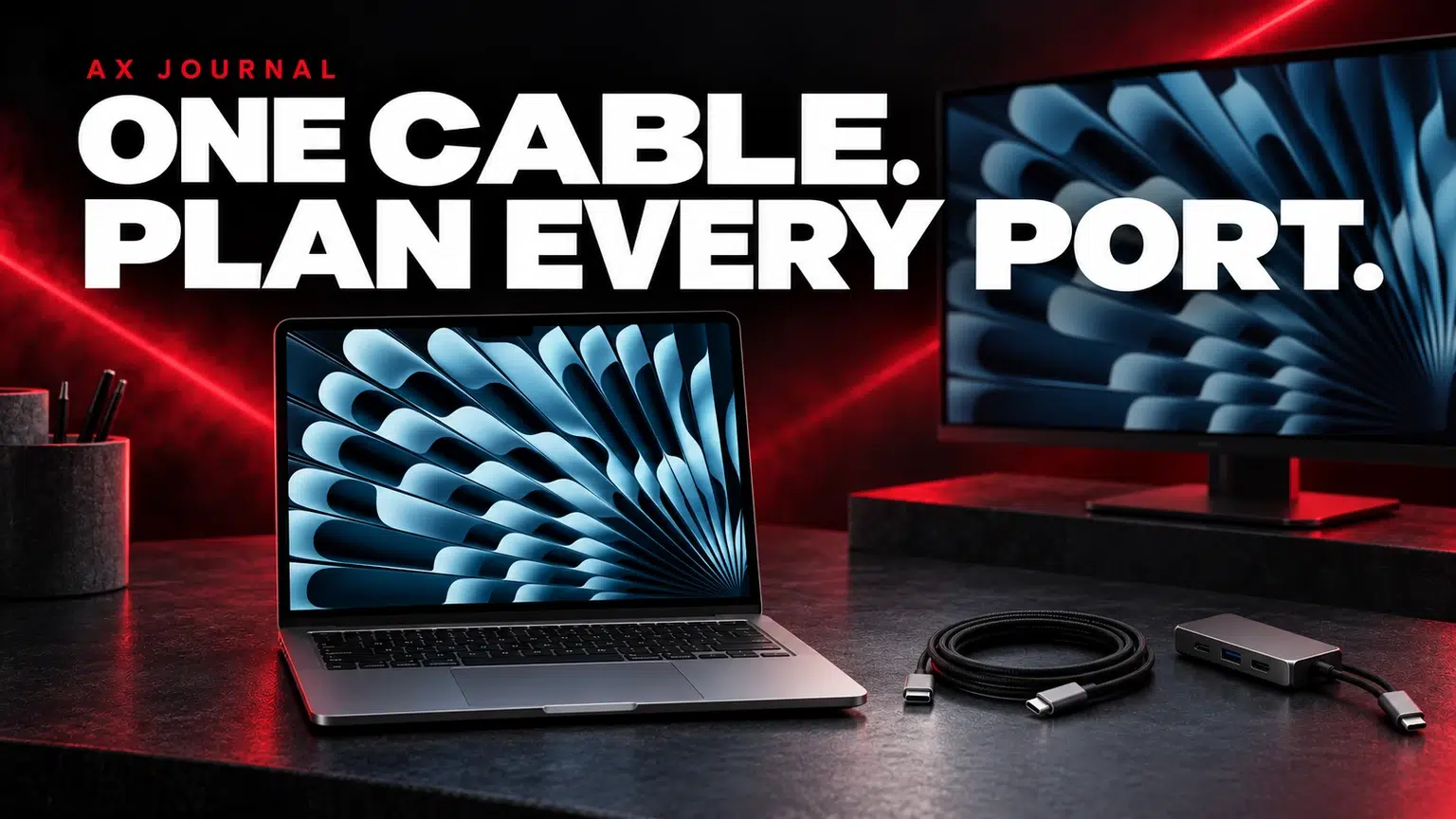
MacBook USB-C Dock: the essentials
A MacBook USB-C Dock must match the exact Mac, supported display arrangement, charging needs and the peripherals you want to connect.
Write the desk connection list first
List every device you want connected when you sit down: monitor, charger, keyboard, mouse receiver, external drive, memory card or Ethernet. Mark which devices must work simultaneously and which can be connected occasionally. This turns an attractive multiport product into a concrete compatibility decision.
Also write down the exact Mac model and chip. MacBook Air, MacBook Pro and MacBook Neo do not share every port and native-display capability. A dock purchase should follow that model-specific information rather than a general rule about all USB-C laptops.
The same connector shape can carry different functions
USB-C describes a connector. Data speed, video output, charging and Thunderbolt support depend on the actual ports, cables and devices. A cable that charges a laptop is not automatically suitable for the intended high-speed storage or display connection.
Apple’s adapter guidance is a useful starting point for matching a Mac’s port to an accessory. For video, check the entire chain from the Mac through the dock to the display. An unsupported link can reduce the available resolution or refresh rate even when the monitor itself supports more.
Use a requirements table
| Job | What to confirm | Question before buying |
|---|---|---|
| External monitor | Native Mac limit plus dock output and cable mode | What resolution and refresh rate do I need? |
| Charging | Power Delivery support and usable host power | Does the laptop receive enough power for the workload? |
| External storage | Actual data speed and shared bandwidth | Will video and storage run together? |
| Keyboard and mouse receiver | Suitable data ports and physical placement | Will the receiver have a clear practical location? |
| Ethernet or card reader | The exact interface and compatibility | Do I need this every day or occasionally? |
A maximum printed on one port should not be treated as a promise for every device operating at its maximum simultaneously. Read the exact dock specification, including any shared-bandwidth or display-mode conditions.
Native screen limits still belong to the Mac
A dock with several video sockets does not automatically create the same number of independent native desktops on every Mac. Apple identifies model-specific limits, and its display troubleshooting guide also highlights cable, adapter and resolution constraints.
For example, MacBook Neo has distinct USB-C port capabilities and a documented single native external-display route. Use the Neo guide before planning a multi-screen desk. For Air or Pro, read the exact chip and generation’s specifications rather than applying the Neo limit to the whole Mac range.
Read charging claims as a complete power path
Check whether the dock includes its own power supply or expects a compatible charger connected to a power-input socket. Then distinguish the power accepted by the dock from the power it can deliver to the host laptop. The headline input figure may not be the laptop’s received figure.
Include the charger and cable requirements in the cost. A dock does not automatically replace the correct laptop power supply, and an attractive port count should not hide a missing charger in the package. Match power planning to the exact laptop and workload.
Compare the actual UGREEN form factors at AX
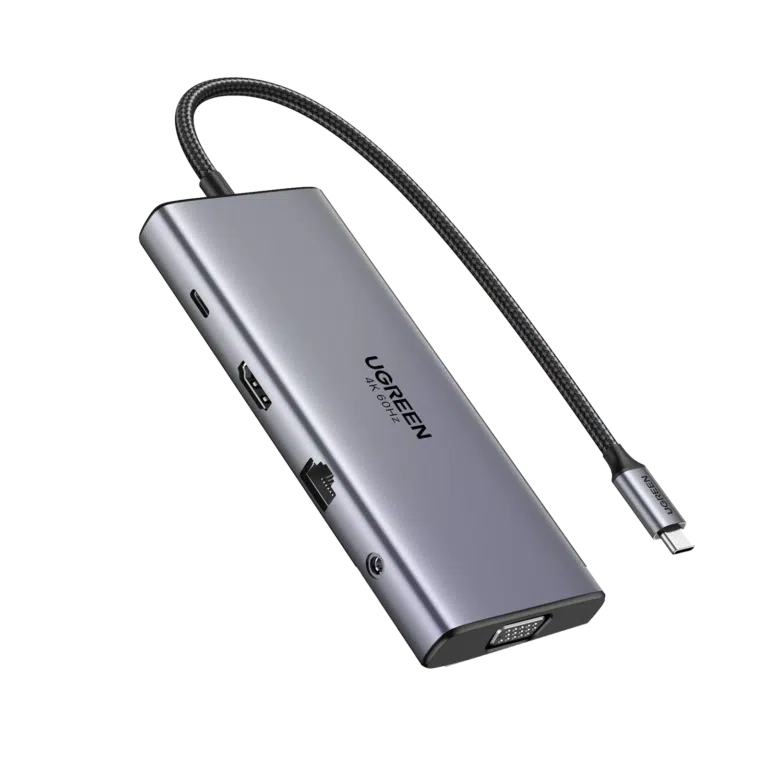
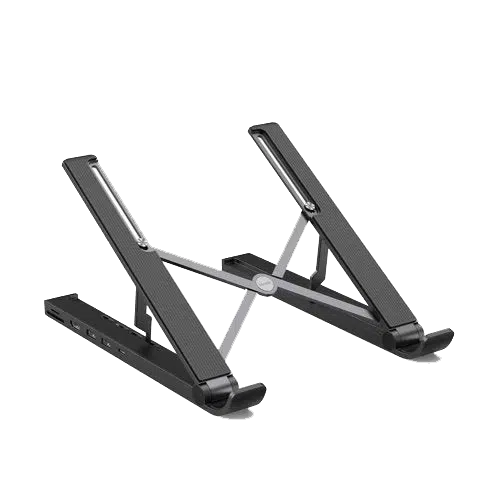
The UGREEN Revodok Pro 211 CM639 45520 is a multiport docking-station option to compare against your connection list. The UGREEN X-Kit 80551 combines a laptop-stand form factor with a hub. Their physical roles are different, so start with whether you also need to raise the laptop.
Use the individual listings for the precise sockets and included package. This guide does not assume that every UGREEN dock shares the same charging or video specification. The model number is the useful reference when asking AX about compatibility.
Keep audio devices and receivers in the plan
A USB microphone, audio interface and mouse receiver can each add a connection and placement requirement. If an audio device becomes unreliable through a hub, compare a suitable direct connection before changing the rest of the system.
Leave enough cable length to open and move the laptop without straining sockets. Keep the docking arrangement easy to inspect: a neat route with a known cable for each job is easier to troubleshoot than a chain of unlabelled adapters.
Test the dock with a normal work session
- Connect power and confirm normal charging behaviour.
- Check the display resolution and refresh mode.
- Transfer a non-critical test file to the intended external drive.
- Test microphone, headphones and video call if required.
- Disconnect and reconnect the desk once, then confirm the same devices return.
Choose the laptop first using the Air and Pro buying guide and plan the wider desk with the Mac desktop setup guide. Keep the exact Mac, dock, display and cable model numbers together for useful support.
Frequently asked questions
Will any USB-C hub drive two independent monitors on any Mac?
No. Native display support depends on the exact Mac, and the dock, cables and chosen output modes also impose requirements.
Does 100W printed on a dock mean 100W reaches the laptop?
Check whether the figure describes dock input or host delivery and whether a charger is included. Those details are model-specific.
Can a USB-C charging cable always carry monitor video?
No. The connector shape alone does not establish video or data capability. Use a cable documented for the intended connection.
Continue planning your setup
- MacBook Pro vs MacBook Air in Kuwait: Choose for Your Workload
- MacBook Neo in Kuwait: A18 Pro, 256GB vs 512GB and Who It Suits
- Mac mini Desk Setup: Choose Displays, Audio and USB Connections
Related guide: Mac mini desk setup guide.
Shop the equipment in Kuwait
AX price check, 26 October 2026: UGREEN Revodok Pro 211 CM639 45520 11-in-1 USB-C Docking Station — KWD 14.900 (in stock); UGREEN X-Kit 80551 5-in-1 USB-C Docking Station Laptop Stand — KWD 18.900 (in stock). The product cards show the current price and availability when you shop.
Explore UGREEN at AX Kuwait, Apple at AX Kuwait for the rest of the range.
AS


Build a setup that fits how you use it
Tell AX your exact models and what you want to do. We can help match the equipment and connections.