BUYING GUIDE
Apple
Mac mini Desk Setup: Displays, Audio and USB Connections
A Mac mini Desk Setup needs a suitable display connection, practical USB expansion and the audio equipment that fits your work or listening routine.
AS
AX Store
Mac mini Desk Setup: the essentials
A Mac mini Desk Setup needs a suitable display connection, practical USB expansion and the audio equipment that fits your work or listening routine.
Start with the exact configuration
Mac mini display support and port capabilities vary by generation and chip. Record the exact model and configuration on your order, rather than using a diagram for whichever Mac mini appears first in a search result.
The Mac mini M5 Pro configuration at AX is one example in the catalogue. Choose memory and internal storage around the applications, active projects and sample libraries you intend to use. A desk guide should not replace checking the configuration you are actually buying.
Map the display route before selecting a dock
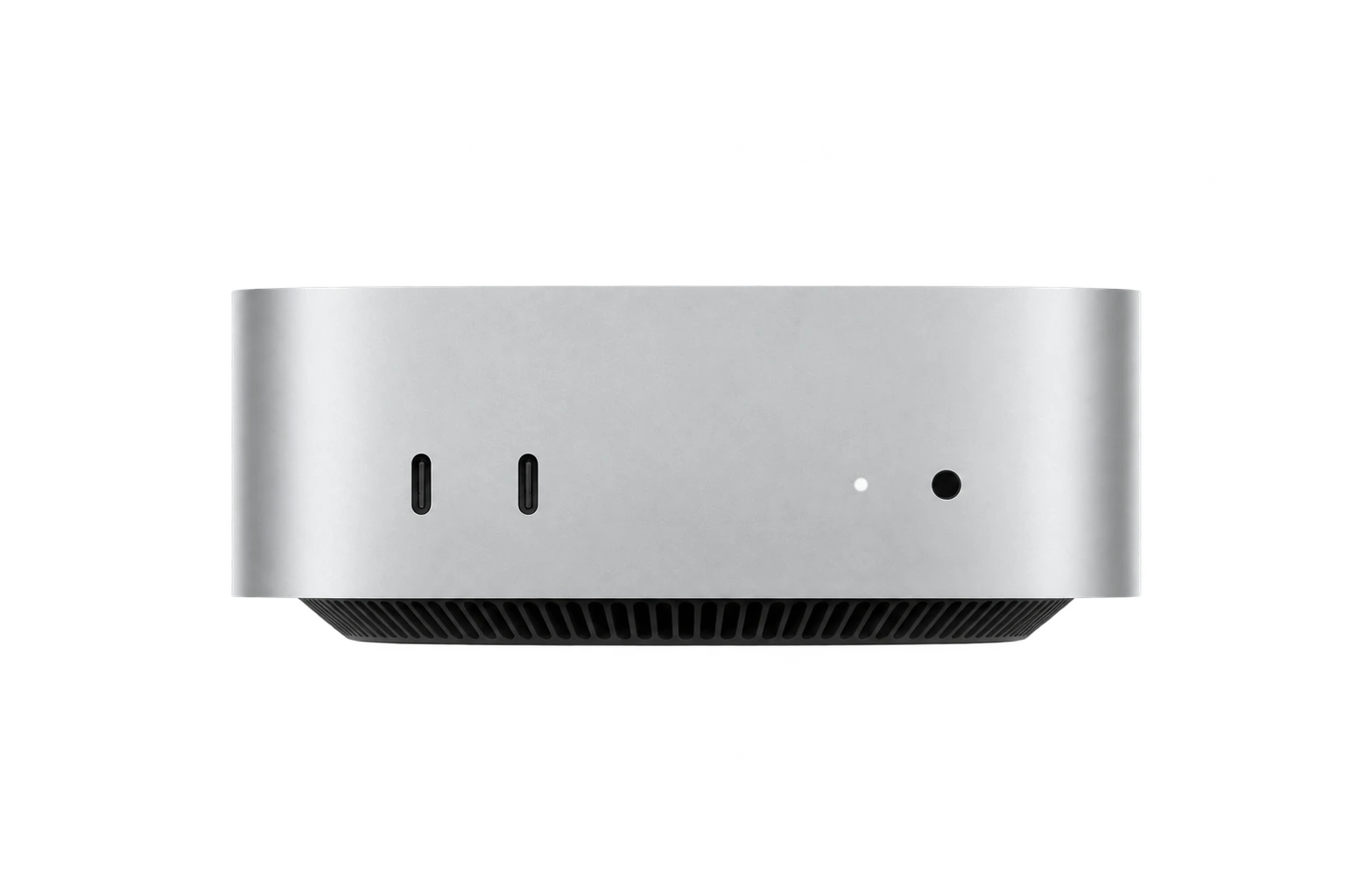
Apple documents display connections through the supported HDMI and rear Thunderbolt / USB-C outputs for current Mac mini models. The supported combinations depend on the exact model, resolution and refresh rate.
A USB-C-shaped port on a computer or dock is not sufficient evidence of the display capability you want. Check whether that specific port supports video, whether the cable supports the intended mode and whether the dock relies on additional software. Do not assume that adding a dock increases the computer’s native supported display count.
Choose the screen around your work
| Desk use | Display priority | Connection question |
|---|---|---|
| Editing text and general work | Readable detail and comfortable scaling | Does the chosen output support the target native resolution? |
| Creative work | Appropriate colour and image requirements | What modes are supported by the exact display and cable? |
| High-refresh gaming or mixed use | Resolution / refresh balance | Can the Mac, connection and game use the desired mode? |
| Multiple screens | A documented supported combination | Does the exact Mac mini configuration support the complete layout? |
Leave enough desk depth for a comfortable position. A large screen with poor placement can be less useful than a smaller one at an appropriate height and distance.
Try the headphone output before buying an amp
Apple documents adaptive high-impedance headphone support on compatible Mac mini models introduced in 2023 or later. That means a high-ohm headphone is not automatically a reason to add a desktop amplifier.
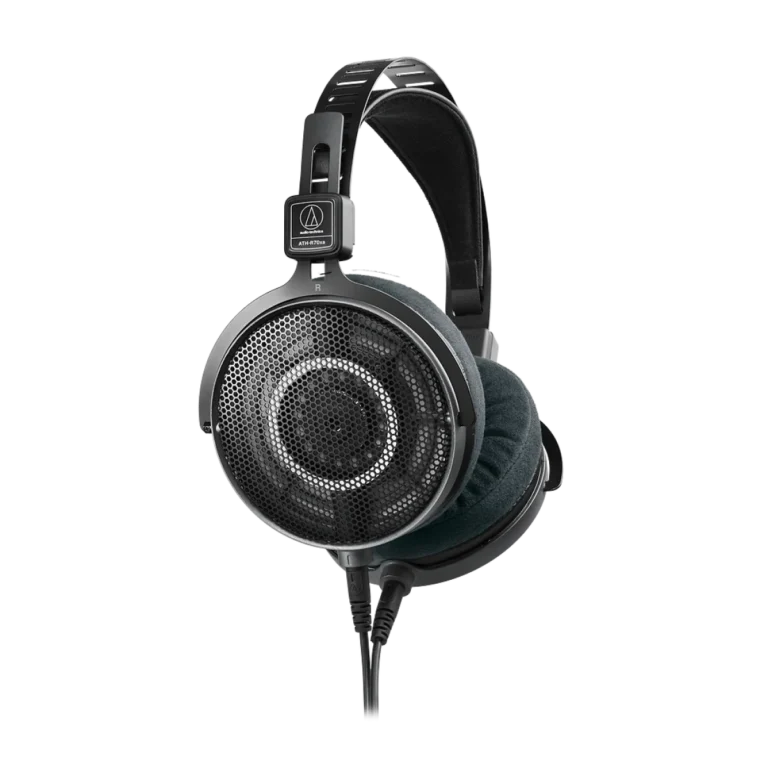
Try your intended headphone at a comfortable level, and assess usable headroom and control. For a model such as Audio-Technica ATH-R70xa, look at both impedance and sensitivity, together with the source capability. Add an external DAC/amp when it solves an identified connection, output or control requirement.
Recording needs an input plan
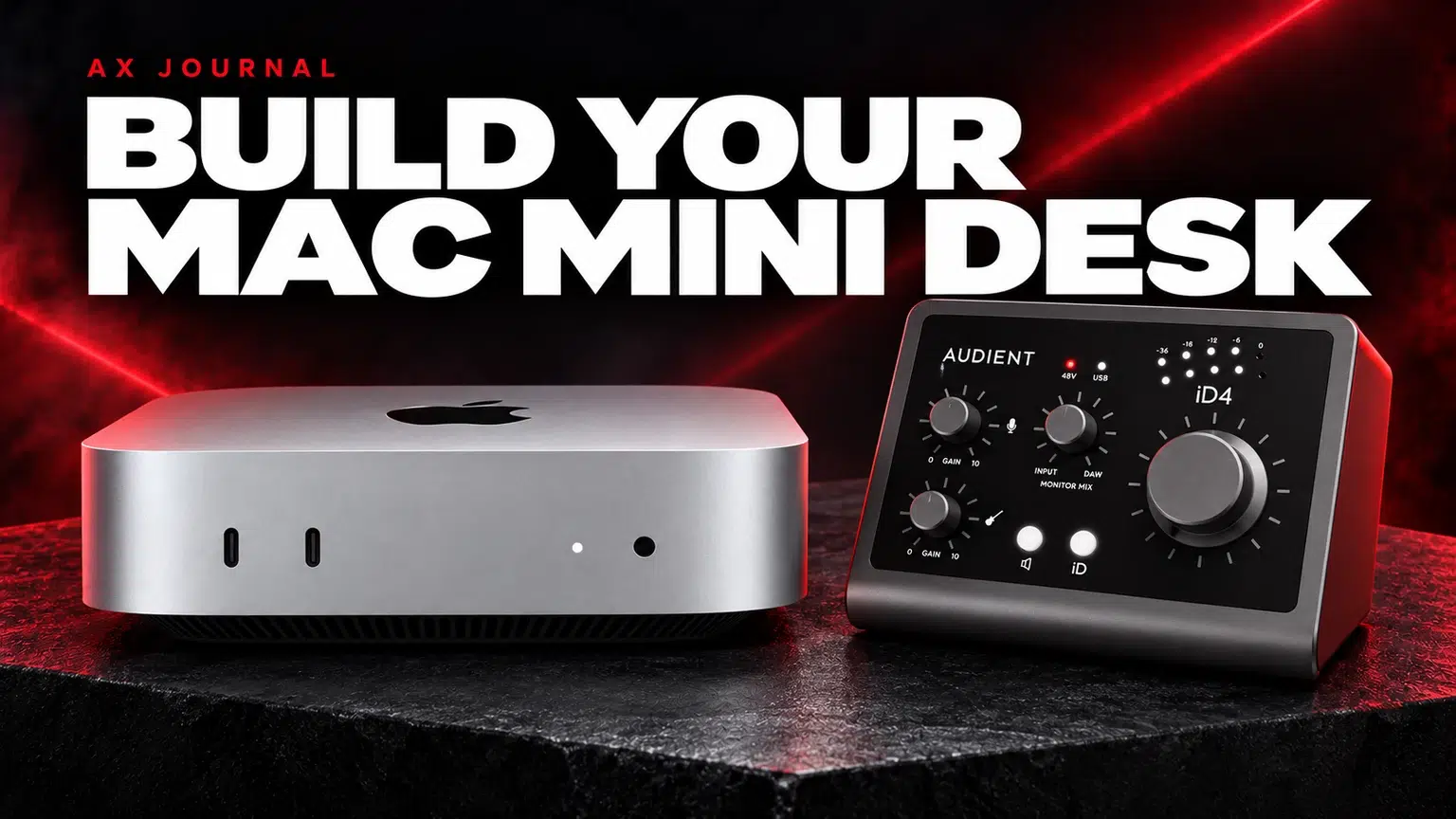
An XLR microphone requires an appropriate interface or recording console. A headphone output is not an XLR microphone input. Audient iD4 MKII illustrates a compact interface route, while RØDECaster Duo offers a different workflow for multiple sources and podcast production.
Check current macOS compatibility, driver requirements and the exact application before ordering. Direct monitoring, microphone gain and independent headphone mixes should be evaluated around the recording job. A console chosen for Windows-only control software should not be assumed to provide the same Mac workflow.
Organise USB and storage deliberately
Reserve the most appropriate ports for devices with clear bandwidth or stability requirements. If an audio interface or capture device behaves unpredictably through a hub, test a supported direct connection before replacing it.
Separate the purpose of storage connections: an active project drive, archive and backup are different roles. Check the actual drive and enclosure interface, not only the USB-C shape. A fast-looking connector does not prove the speed of the complete storage path.
A complete desk checklist before checkout
- Exact Mac mini chip, memory and storage configuration.
- Display model, number of displays and intended modes.
- Correct video cables or documented adapters.
- Keyboard, mouse or trackpad and their connection needs.
- Headphone source and any confirmed need for external audio hardware.
- Microphone input path if recording or streaming.
- External storage, backup and a sensible port layout.
Set up the simplest working chain first, then add a dock or specialist audio device when its function is clear. This makes problems easier to isolate and avoids spending on accessories that duplicate capabilities already on the desk.
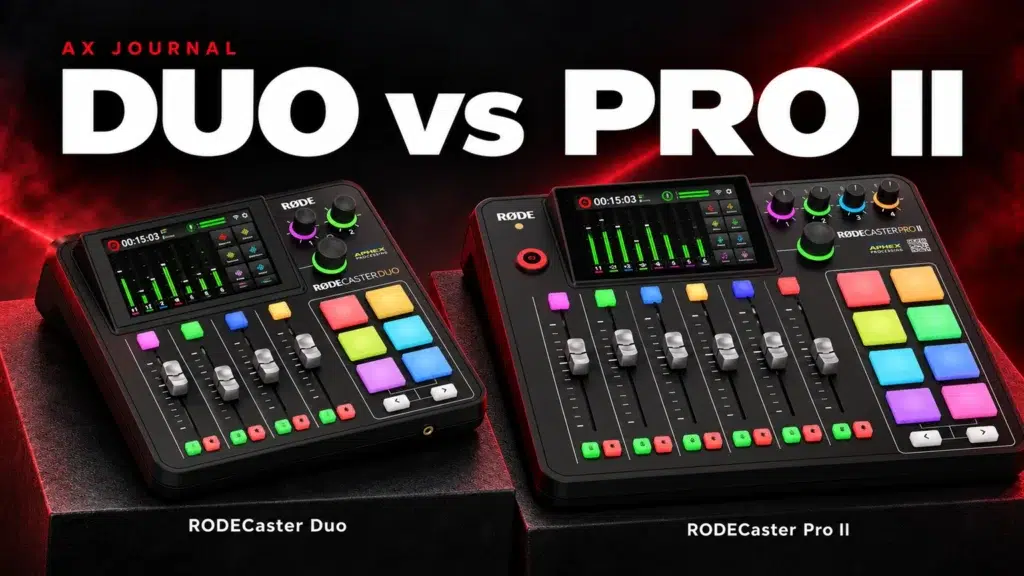
For the related buying decision, read our RØDECaster Duo vs Pro II.
Frequently asked questions
Can every USB-C port on a Mac mini drive a display?
Do not assume that from connector shape. Use Apple’s model-specific port and display guidance, particularly when distinguishing front USB ports from rear display-capable outputs.
Do high-impedance headphones always need an external amp on Mac mini?
No. Compatible models have adaptive headphone-output support. Check the exact model and actual headphone performance first.
Can I use an XLR microphone directly in the headphone jack?
No. Plan a compatible audio interface or recording device with the required microphone input and gain.
Continue planning your setup
- DAC vs Headphone Amp vs Audio Interface: What Does Your Desk Need?
- Headphone Impedance and Sensitivity: How to Choose an Amplifier
- Is a 200Hz 1080p Monitor Right for You? Refresh Rate vs Resolution
Check current configurations, included accessories and availability on the linked AX product pages. Ask AX about your exact setup.
Shop the equipment in Kuwait
AX price check, 26 October 2026: Apple Mac mini M5 Pro 18-Core CPU / 20-Core GPU – 48GB, 1TB SSD, Silver — KWD 989.000 (in stock); Audio-Technica ATH-R70xa Open-Back Reference Headphones — KWD 120.000 (in stock). The product cards show the current price and availability when you shop.
Explore Apple at AX Kuwait, AUDIO-TECHNICA at AX Kuwait, Audient at AX Kuwait for the rest of the range.
A useful next guide
Continue with MacBook USB-C Dock: Choose Ports, Displays and Power to plan the related part of your setup.
AS


Build a setup that fits how you use it
Tell AX your equipment models and what you want to do. We can help you choose the right connections and products.