
SETUP GUIDE
Apple
New Mac Setup Checklist for Your First Day
A New Mac Setup works best in a practical order: account access, updates, migration, backup and the equipment you use every day. Prove the complete.
AS
AX Store
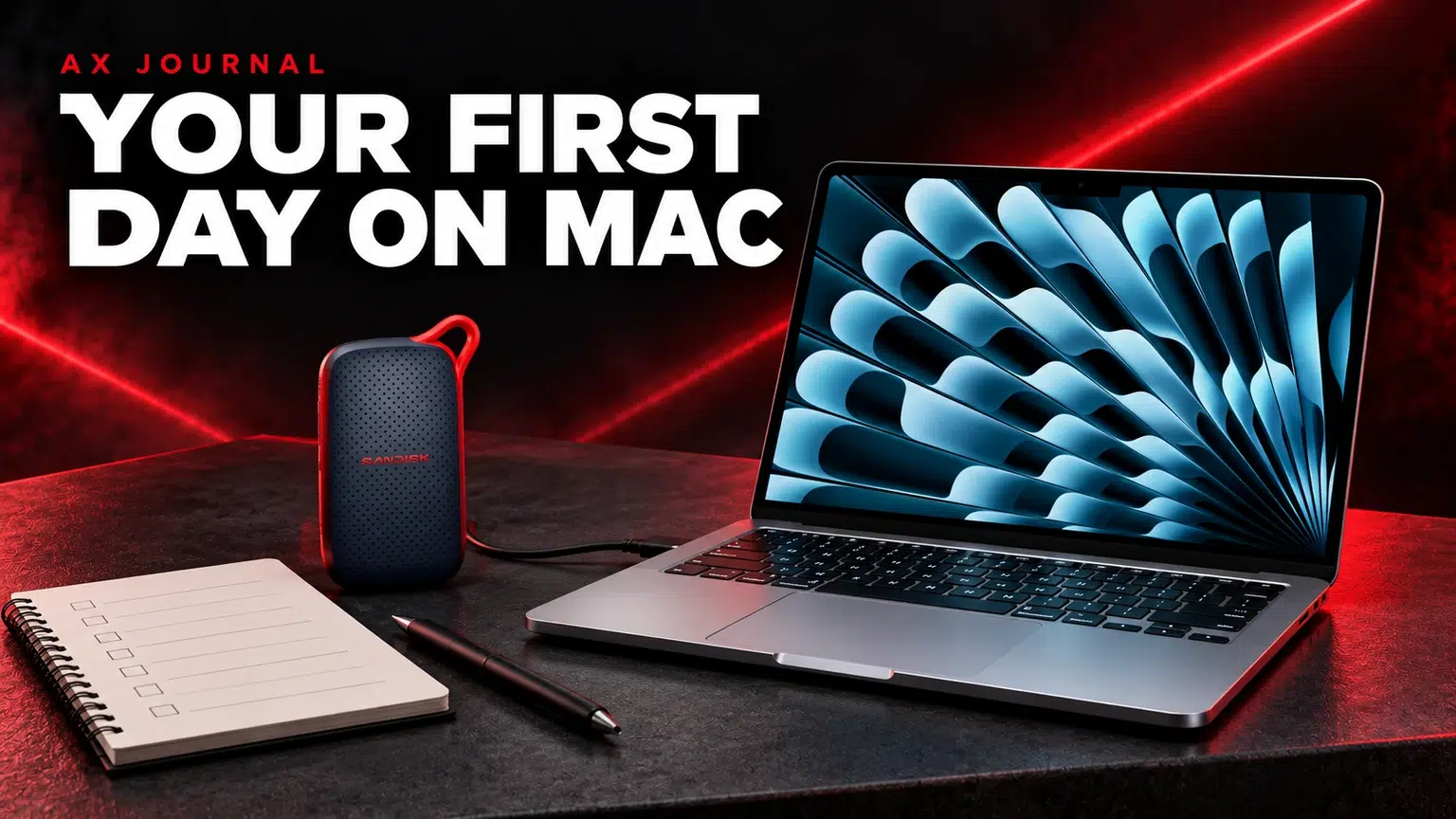
New Mac Setup: the essentials
A New Mac Setup works best in a practical order: account access, updates, migration, backup and the equipment you use every day. Prove the complete workflow before clearing the old computer.
Prepare the old computer and the account details
Before opening multiple setup tasks, gather the information you need: your Apple Account access, application licences, important folders and any work or university account requirements. Make a current backup of the old computer. Keep access to its login and files until the new Mac is working.
Decide whether you want to migrate existing data or start with a clean arrangement. Migration Assistant can help move supported information, but it is still useful to know which documents and applications matter. A migration is not a substitute for checking that the files arrived and open correctly.
Follow the setup flow, then update
Use Apple’s setup guidance for the Mac and macOS version supplied. Connect to a reliable network, complete the account steps you choose and review the available system updates. If the Mac belongs to an organisation, follow its enrolment and account requirements rather than creating a conflicting personal setup.
Review the security and privacy choices deliberately, including account recovery and device access. Keep software downloads to their official sources. There is no need to install a collection of third-party maintenance utilities before you have established what the Mac actually needs.

Test your applications before declaring the move complete
Install the applications you use and open a representative project or document in each. Check plugins, fonts, external libraries and any equipment software, especially when moving from an older platform. A successful application installation does not prove that every plugin or peripheral is supported.
Use a small, repeatable checklist: edit a document, open a project, play audio, join a test call and access the storage you need. Keep the old computer available until these tasks work. If a specialist workflow depends on a particular macOS version, check the application’s compatibility guidance before changing that version.
Set up backup separately from extra storage
An external drive can extend workspace, hold an archive or store backups. Those are different jobs. If the only copy of a project lives on a portable drive, that drive is primary storage for the project, not its backup.
Time Machine has its own storage and formatting requirements. Follow Apple’s instructions and verify that the first backup completes. Our external SSD and backup guide explains how to plan work storage separately, using options such as the SanDisk Portable SSD V3 without assuming that every drive should do every job.
Connect the desk one chain at a time
| Device | First test |
|---|---|
| Monitor | Correct input, resolution and refresh mode |
| Hub or dock | Video, power and data functions required by the Mac |
| Headphones or speakers | Correct output and comfortable volume |
| Microphone and camera | Selected inputs in the actual call or recording application |
| External storage | Files open, transfers complete and backup remains separate |
USB-C describes the connector shape, not a universal promise of video, charging and data performance. Check the exact Mac port, adapter, cable and display combination. Connecting one device at a time makes a problem easier to isolate than changing a whole dock arrangement at once.
Match the checks to your Mac
The MacBook Air M5, MacBook Pro M5 Pro and MacBook Neo have different configurations and connection capabilities. Use the support information for the exact model rather than copying a desk arrangement from a different Mac.
If you are still choosing, read MacBook Air or Pro and our MacBook Neo buying guide. For a desktop arrangement, the Mac mini desk guide covers the separate screen and audio decisions.
Finish the first day with the important files opening, the daily applications working and a completed backup you know how to access. Only then decide what to remove from the old machine. That sequence gives you a usable system and a clear fallback if a specialist application still needs attention.
Frequently asked questions
Should I erase the old computer immediately after migration?
Keep it and its backup until you have checked important files, applications and peripheral workflows on the new Mac.
Is a portable SSD automatically a backup?
No. If it holds the only copy, it is primary storage. Make a separate backup of important work.
Will any USB-C dock work identically with every Mac?
No. Confirm the exact Mac, port capabilities, dock and display requirements before buying.
Continue planning your setup
- MacBook Pro vs MacBook Air in Kuwait: Choose for Your Workload
- MacBook Neo in Kuwait: A18 Pro, 256GB vs 512GB and Who It Suits
- Choose External Storage for Mac Work and Backup
Related guide: Mac mini desk setup.
Shop the equipment in Kuwait
AX price check, 26 October 2026: Apple MacBook Air M5 13.6″ Liquid Retina – 16GB RAM, 512GB SSD – Sky Blue — KWD 437.000 (in stock); Apple MacBook Pro 14″ M5 Pro 24GB/1TB – Space Black (AR/EN) — KWD 787.000 (in stock). The product cards show the current price and availability when you shop.
Explore Apple at AX Kuwait, SanDisk at AX Kuwait for the rest of the range.
AS


Build a setup that fits how you use it
Tell AX your exact models and what you want to do. We can help match the equipment and connections.