BUYING GUIDE
Apple
Choose External Storage for Mac Work and Backup
External storage for Mac should separate active work from backup. Choose the drive capacity, connection and format around the applications you use, then.
AS
AX Store
external storage for Mac: the essentials
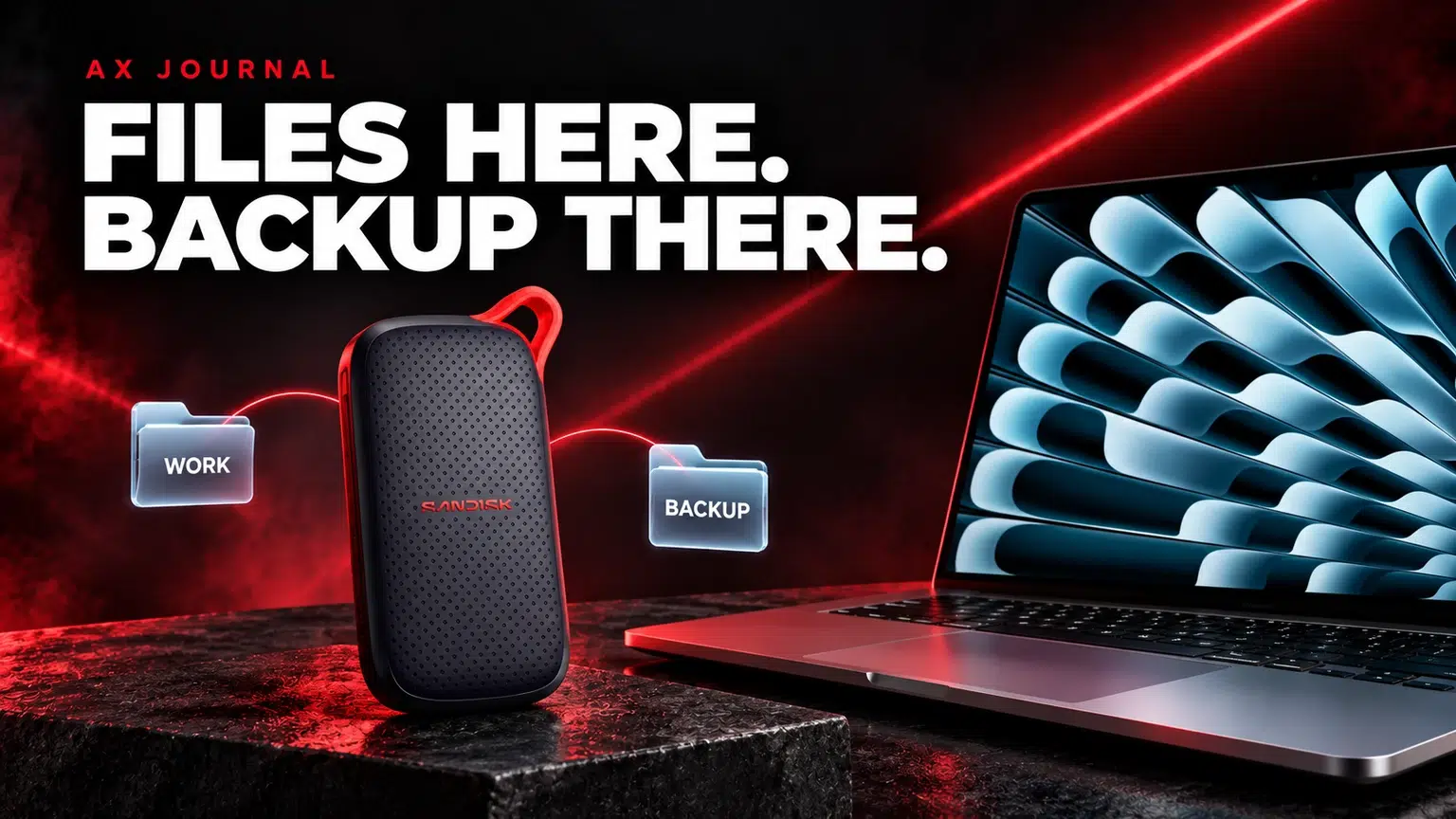
External storage for Mac should separate active work from backup. Choose the drive capacity, connection and format around the applications you use, then keep another copy of important files.
Give the drive one clear job
Decide whether the drive is for active projects, a media library, an archive, transfers between computers or Time Machine. Those jobs overlap less than they first appear. A drive holding the only copy of your video project is the working drive for that project, even if it lives outside the Mac.
Write the plan before formatting or copying data. For example, the Mac can hold applications and current documents, a portable SSD can hold larger active media, and a separate device can hold backups. That gives each piece of storage a purpose and makes it easier to see which files still have only one copy.
Choose capacity and connection together
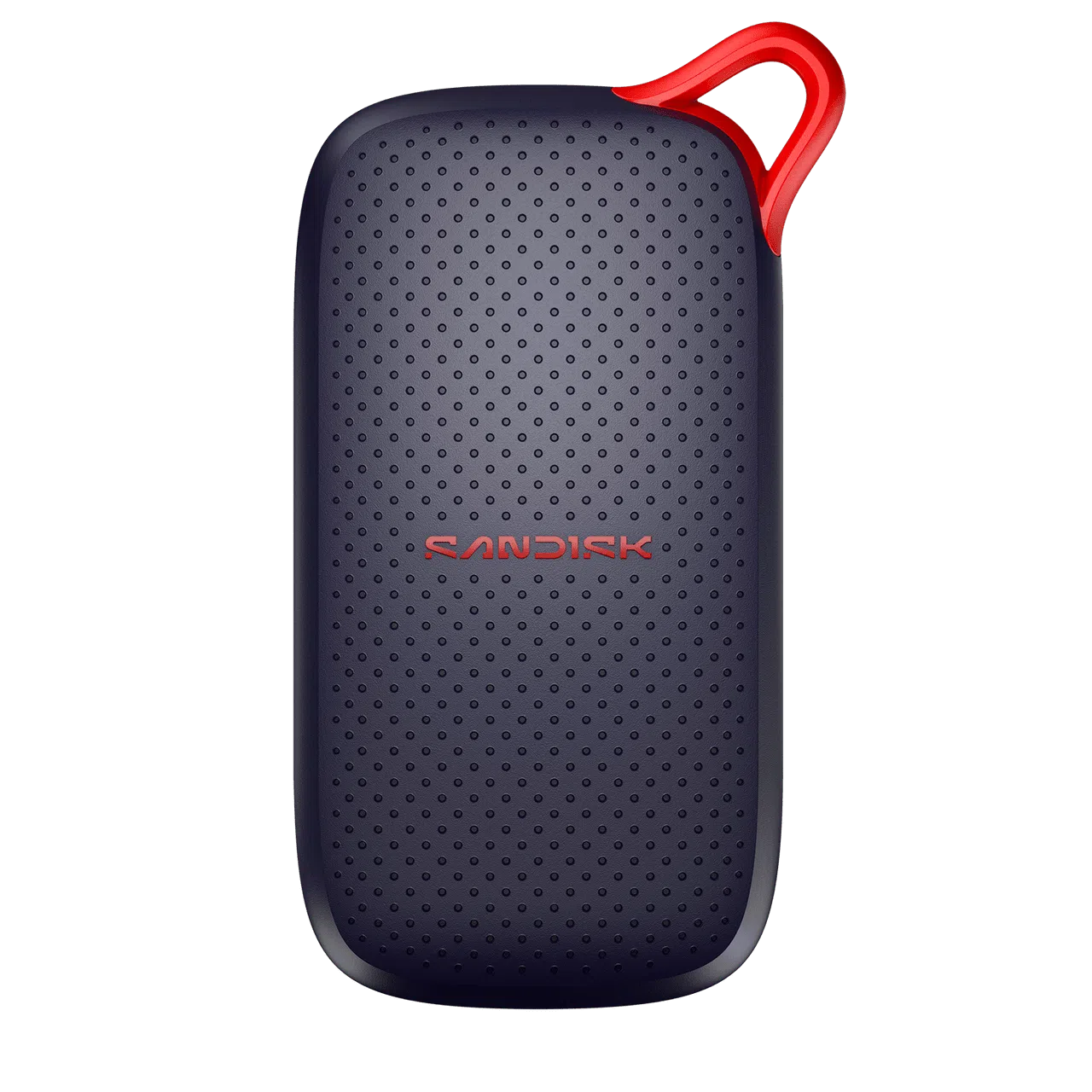
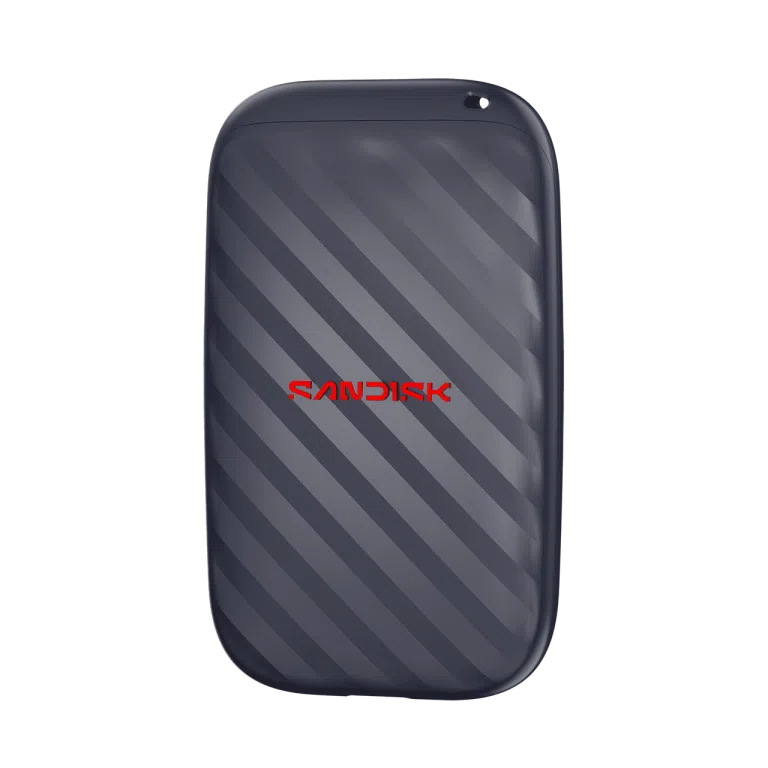
The SanDisk Portable SSD V3 1TB and SanDisk Portable Drive 1TB SSD are portable storage options to compare by their exact interfaces and specifications. The SanDisk Professional G-DRIVE 8TB hard drive addresses a different capacity and physical-use requirement.
SSD and hard drive are different storage technologies. Decide whether portability, project access or archive capacity matters most. Do not assume that a larger drive is automatically the faster one, or that two devices with USB-C connectors have the same transfer capability.
Understand the connection limit
The drive, Mac port, cable and any hub form one transfer path. The slowest relevant part can limit the result. A cable that charges a device is not necessarily a high-speed data cable, and a hub can share bandwidth between attached devices.
If a drive seems unexpectedly slow, first test it directly on a suitable Mac port with the supported cable. Compare the same file transfer and destination before changing several parts. Copying to a slower second drive cannot demonstrate the first drive’s maximum capability. Read advertised speeds as figures under stated test conditions, not a guarantee for every file copy.
Choose a format for the actual application
| Use | Planning question |
|---|---|
| Mac-only project storage | Does the application recommend APFS or another specific format? |
| Transfers between Mac and Windows | Will a compatible exchange format such as exFAT suit the files and applications? |
| Time Machine | Is the drive prepared in a format supported by Time Machine? |
| Video editing library | Does the editing application permit the intended storage location? |
Apple recommends APFS or APFS Encrypted for current Time Machine disks. Do not assume that a drive formatted for Windows transfers is also ready for Time Machine. Formatting erases existing data, so move and verify anything you need before changing the format.
Final Cut Pro adds a specific distinction: its library should not be stored on a device used for Time Machine backups. Plan the project library and backup destination accordingly rather than discovering the conflict after moving your media.
Make the first transfer a controlled one
- Confirm the drive, cable and intended port.
- Back up important files before changing their location.
- Copy a representative project and open it in the application.
- Check linked media and external library paths.
- Establish a separate backup before removing the original copy.
A project can open while still referring to media on the old drive. Check the complete project rather than only the main file. Keep the old arrangement available until the new location works through a normal session.
Build backup into the routine
A backup routine should be easy to repeat. Confirm when the last backup completed and where it is stored. A connected drive does not prove that a scheduled job succeeded, and a cloud-sync folder is not automatically the same thing as a backup with the recovery behaviour you expect.
Use the drive’s eject process before disconnecting it and follow the manufacturer’s handling guidance. Keep adapters and cables labelled if you use several similar-looking ones. For important work, know how you would recover a file before the first recovery is urgent.
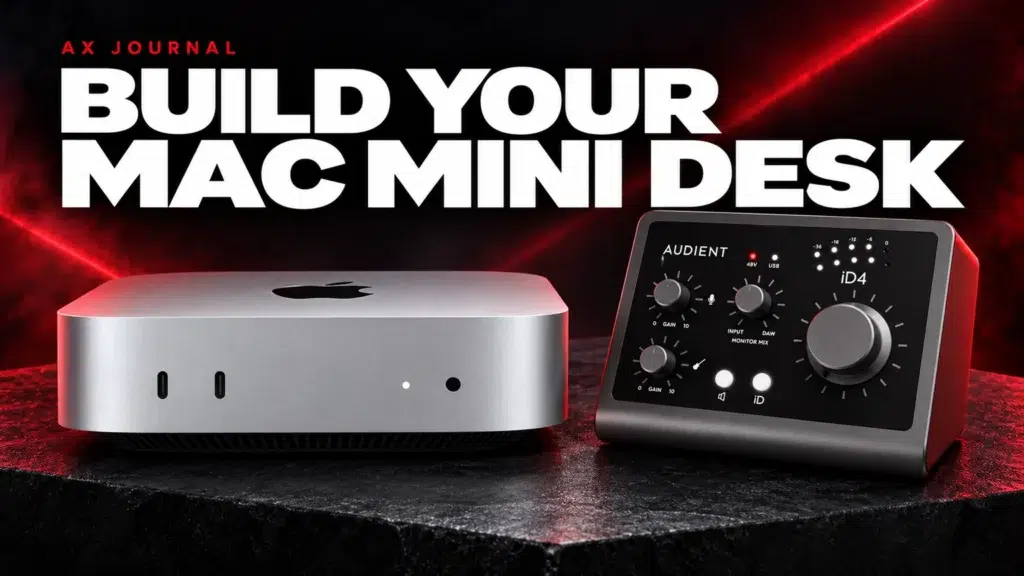
Continue with the new Mac setup checklist, MacBook dock compatibility or internal SSD planning depending on where the storage will live. For a desktop Mac, the Mac mini desk guide brings the screen, audio and USB decisions together.
Frequently asked questions
Is an external SSD a backup?
Only when it stores an additional recoverable copy. If it holds your only copy, it is primary storage.
Can I use the same drive for a Final Cut library and Time Machine?
Apple advises against storing a Final Cut Pro library on a storage device used for Time Machine backups. Plan separate supported destinations.
Why does a USB-C drive not reach its advertised speed?
The port, cable, hub, other drive and type of file transfer can all impose limits. Start by testing a suitable direct connection.
Continue planning your setup
- New Mac Setup Checklist for Your First Day
- Choose a USB-C Dock for Your MacBook
- Choose an NVMe SSD for Your Gaming PC
Related guide: Mac mini desk setup.
Shop the equipment in Kuwait
AX price check, 26 October 2026: SanDisk Portable SSD V3 1TB, USB-C 1000MB/s — KWD 54.000 (in stock); SanDisk Portable Drive 1TB, USB-C 600MB/s SSD — KWD 40.000 (in stock). The product cards show the current price and availability when you shop.
Explore SanDisk at AX Kuwait for the rest of the range.
AS


Build a setup that fits how you use it
Tell AX your exact models and what you want to do. We can help match the equipment and connections.