
BUYING GUIDE
Smart Home
Home Security Camera Checklist: Placement, Storage and Wi-Fi
A home security camera checklist should start with placement, power, Wi-Fi and where recordings will be saved. A live picture on the phone is only one.
AS
AX Store
Home Security Camera Checklist: the essentials
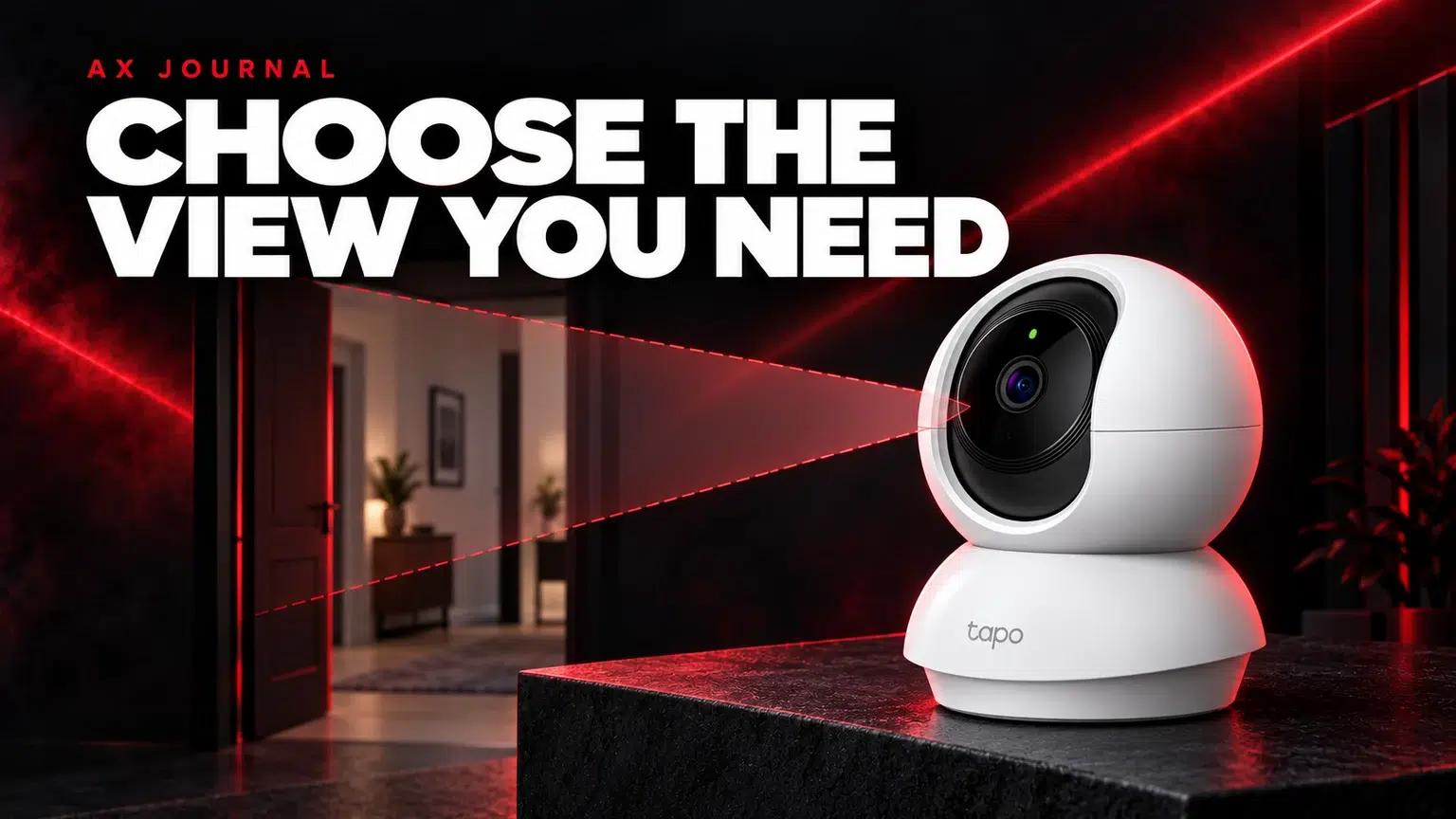
A home security camera checklist should start with placement, power, Wi-Fi and where recordings will be saved. A live picture on the phone is only one part of a working camera setup.
Name the view you actually need
Decide whether the camera should show an indoor room, an entrance or an outdoor area. Check the angle from the intended mounting position rather than judging only the width shown in a product illustration. A camera facing a bright window can have a very different scene from one facing into the room.
Pan and tilt let a compatible camera change direction; they do not mean that every direction is recorded simultaneously. Plan the normal view and any movement features around the part of the room you actually need to see.
Choose indoor and outdoor equipment deliberately
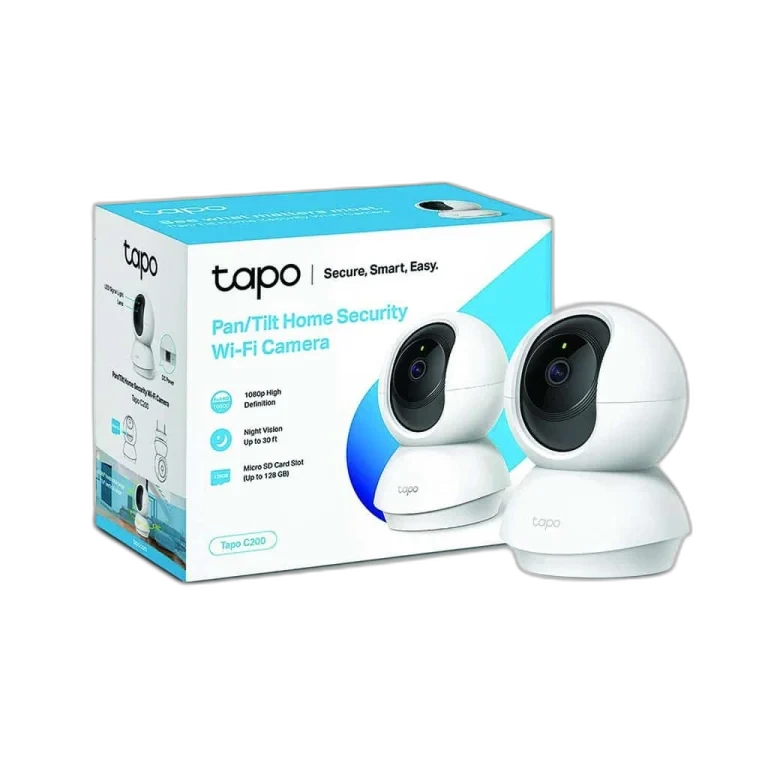
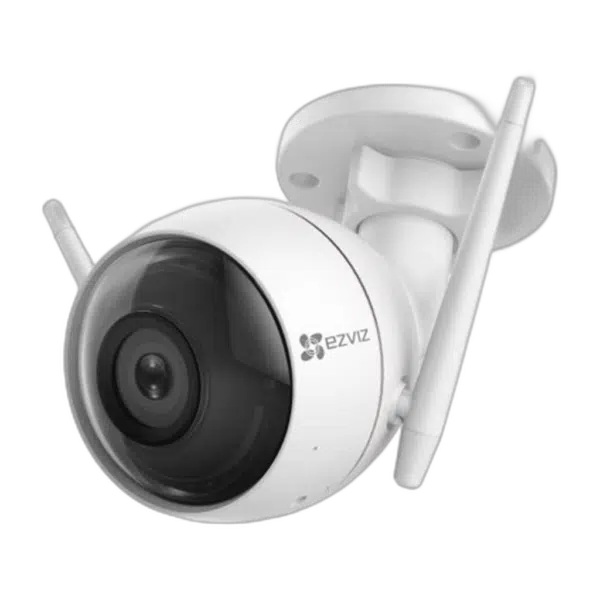
The TP-Link Tapo C200 is an indoor pan/tilt camera to consider for a suitable room position. The EZVIZ C3W ezGuard is an outdoor camera family with different placement and installation requirements.
Use the exact version’s environmental rating and mounting instructions. An outdoor-rated camera still needs its power and cable connections installed appropriately. Do not move an indoor model outdoors because it sits under a small cover, and do not assume that all products sharing a family name have identical recording or storage specifications.
Check power and Wi-Fi at the mounting point
Test network coverage where the camera will actually sit, not only beside the router. Walls, distance and the mounting location can change the connection. Confirm the supported Wi-Fi band and setup requirements for the exact model before planning the installation.
Find a practical power route and read the adapter requirements. “Wi-Fi camera” describes the network connection; it does not automatically mean that the camera is battery-powered or has no power cable. Check cable reach, access and any installation work before attaching the camera permanently.
Choose how the recording is stored
| Storage route | Questions to answer |
|---|---|
| Local memory card | Supported card type and capacity for the exact hardware version |
| Cloud service | Available plan, features, subscription and account requirements |
| Live viewing | Whether recording is enabled separately |
| Recorded events | Detection settings, recording schedule and where to find a saved clip |
| Retention | How storage capacity, quality and recording mode affect available history |
A product page showing a maximum card capacity does not identify every older hardware revision. Use the support information for the version on the device. Follow the camera’s supported card preparation process and check that the card is recognised.
Cloud storage can require a subscription, and local recording has its own limits. Compare the recovery task you care about: finding an event later, reviewing a continuous period or checking a saved clip from a specific time.
Prove recording, not just the live view
- Complete the supported app setup and update process.
- Check the normal camera angle in daylight and low light.
- Configure the intended recording and detection settings.
- Create a simple test event in the area being monitored.
- Find and play the saved clip through the normal app route.
- Confirm the account-sharing arrangement you intend to use.
A notification, a live view and a saved recording are different results. Check each function you rely on. If you enable a privacy mode, understand what it pauses; Tapo’s privacy mode pauses monitoring and recording, so it changes more than a label in the app.
Keep the account and room arrangement manageable
Use the manufacturer’s supported account-sharing method rather than casually sharing one password. Review who has access, keep recovery details available and apply supported updates. Place the camera with the privacy of people using the space in mind, and limit the view to the area you intend to monitor.
Keep the adapter and mounting information so that the camera can be moved or replaced without guessing its requirements. Recheck the view after furniture changes, and review a saved clip periodically to confirm that the intended recording path remains useful.
For other room equipment, use the smart lighting plan and desk layout guide. A new computer setup checklist also helps when the camera account, saved files and daily equipment are being organised at the same time.
Frequently asked questions
Does Wi-Fi mean that the camera has no power cable?
No. Confirm whether the exact model uses an adapter, battery or another power method.
Is live viewing proof that clips are being recorded?
No. Check the recording settings and play a saved test clip from the intended storage destination.
Can I use any memory card capacity shown for the camera family?
Use the compatibility guidance for the exact model and hardware revision; limits can differ between versions.
Continue planning your setup
- Plan Smart RGB Lighting for Your Gaming Room
- Plan a Small Gaming Desk Without Losing Mouse Space
- New Mac Setup Checklist for Your First Day
Related guide: Mac mini desk setup.
Shop the equipment in Kuwait
AX price check, 26 October 2026: TP-Link Tapo C200 360° Pan/Tilt Smart Security Camera — KWD 16.900 (out of stock); EZVIZ C3W ezGuard 1080p Outdoor Wi-Fi Security Camera — KWD 25.000 (in stock). The product cards show the current price and availability when you shop.
Explore Tp-Link at AX Kuwait, EZVIZ at AX Kuwait for the rest of the range.
AS


Build a setup that fits how you use it
Tell AX your exact models and what you want to do. We can help match the equipment and connections.