
BUYING GUIDES
Same-day delivery · Official warranty · Taly & Deema
A Webcam Buying Guide should start with the calls, recordings and streams you actually make. Compare resolution, frame rate, lighting, framing and.
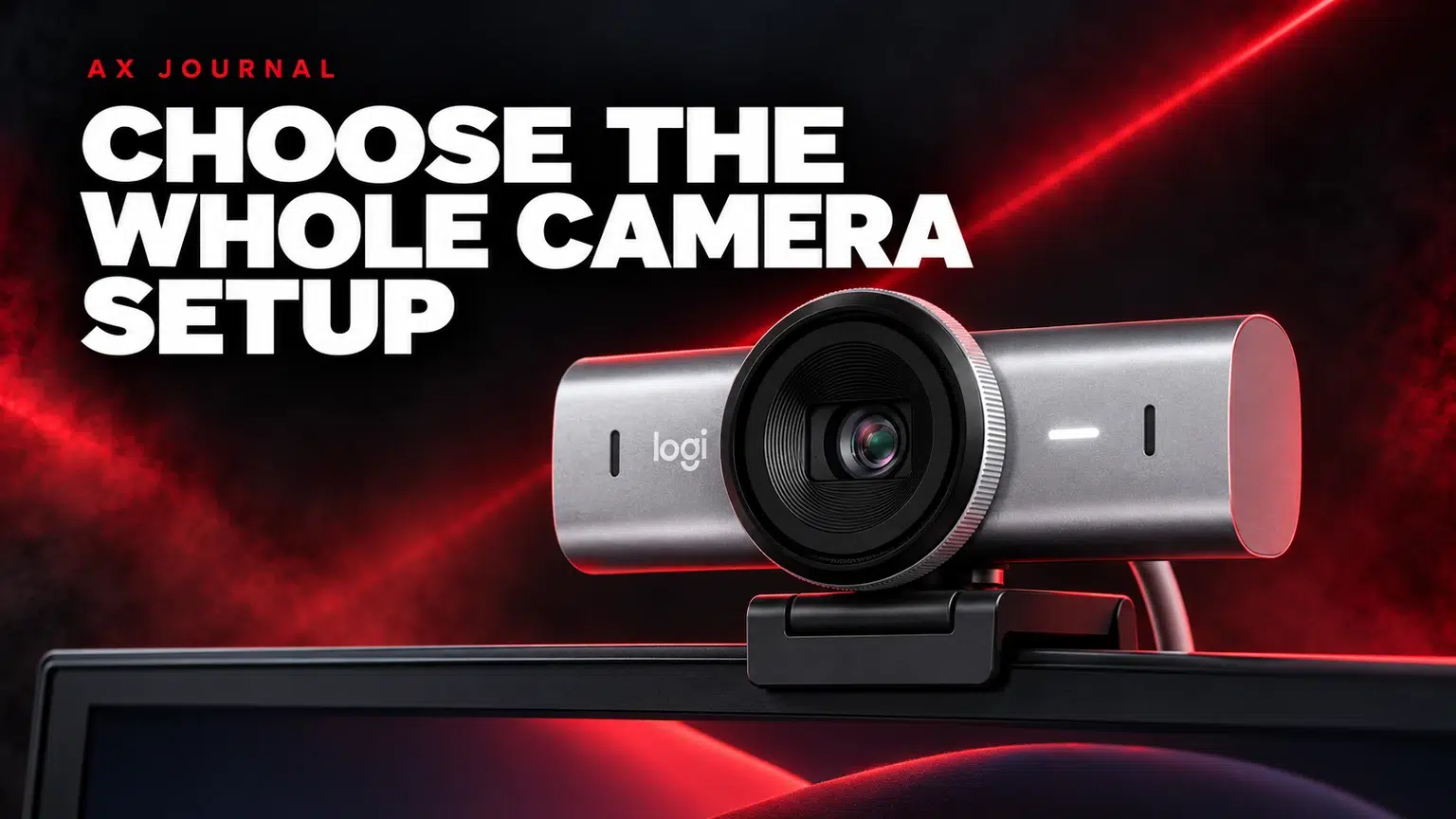
A Webcam Buying Guide should start with the calls, recordings and streams you actually make. Compare resolution, frame rate, lighting, framing and application limits as one complete setup.
Write down whether the camera is mainly for meetings, teaching, full-screen recordings or a small face-camera box in a gaming stream. A camera can support a mode that the calling application does not deliver to the person at the other end.
Consider how you will connect it and which computer will run the session. A camera specification is not the same as the final platform output. Check the application settings, account features and available connection conditions that affect the mode you intend to use.
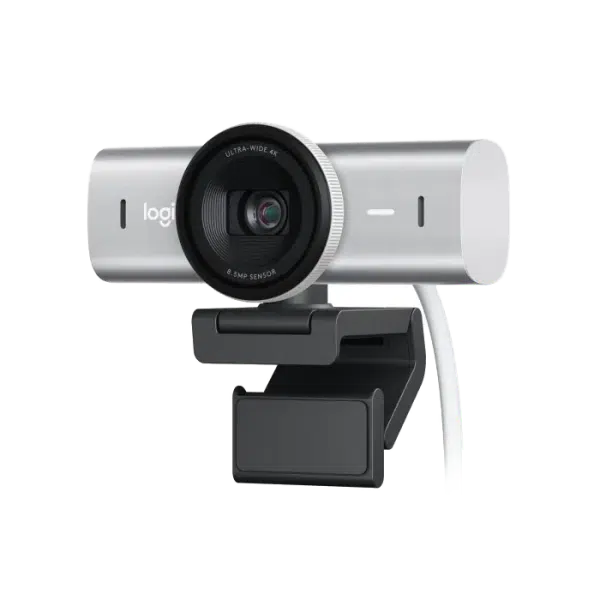
The Logitech MX Brio listing distinguishes 4K at 30 fps and 1080p at 60 fps. Those are different operating modes, not a promise of 4K at 60 fps. Keep that distinction clear when comparing a camera for movement or a higher-resolution recording.
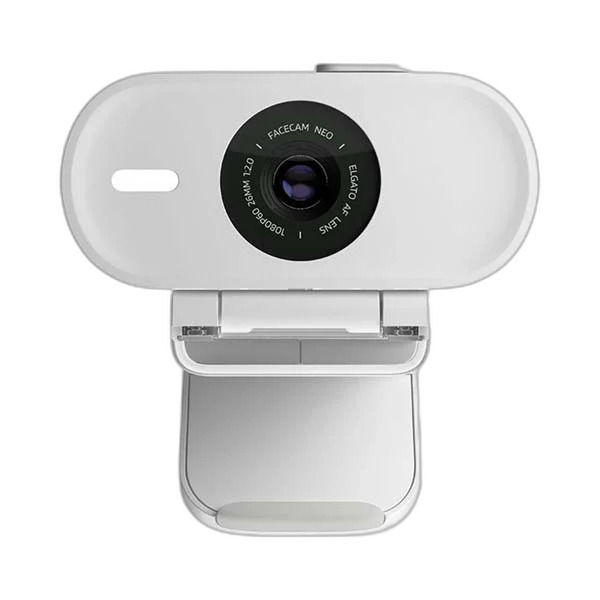
The Elgato Facecam Neo is another option for a 1080p workflow. The Logitech Brio 100 addresses a simpler Full HD camera requirement. Do not combine specifications from MX Brio, Brio 100 or another Brio model simply because the family name is similar.
Place your existing camera at the intended height and distance. Look at how much of the room appears, where your eyes sit in the frame and whether the screen position makes you look far away from the caller. A sensible camera position is a useful improvement before adding digital cropping.
If you present objects or move around, check the focus behaviour for that task. A camera used for a fixed seated meeting has different priorities from one used to show products close to the lens. Use the manufacturer’s supported controls and test the movement you will actually make.
A dark face against a bright background asks the camera to solve a difficult scene. Change the room arrangement or add useful light before assuming that a larger resolution number will fix it. A Razer Key Light Chroma is one lighting option to evaluate alongside the available desk space and mounting point.
Our key light placement guide covers the order: room, light, camera settings and a short recording. For calls, judge the picture in the calling application as well as the manufacturer’s preview software.
| Check | What to establish |
|---|---|
| Connection | USB port type, supported cable and any adapter |
| Camera mode | The actual resolution and frame-rate combination |
| Application | Supported sending and recording settings |
| Mount | Monitor edge, tripod point or other supported placement |
| Audio | The separate microphone you intend to select |
| Privacy | The physical shutter or supported control you will use |
Not every webcam includes a microphone, and a built-in microphone is not necessarily the input you want for a desk recording. Select the intended microphone explicitly in the application. If the wrong device keeps appearing, use our input troubleshooting guide before replacing the camera.
If the picture changes only after adding a dock, isolate the connection before changing camera settings again. If it changes only in one application, compare that application’s selected mode and processing with the working local recording.
For a complete first recording session, use the episode checklist. A reliable camera arrangement is one you can reproduce without rediscovering every setting before a call.
No. The camera mode, application, account features and connection conditions determine the delivered call.
No. They are distinct models with different specifications and intended feature sets.
Choose the input deliberately. Some webcams have no microphone, and you may prefer a separate desk microphone for the workflow.
Related guide: PS5 capture and streaming guide.
AX price check, 26 October 2026: Logitech MX Brio 4K Webcam – 4K30 / 1080p60 — KWD 56.000 (in stock); Elgato Facecam Neo – Full HD Webcam in White — KWD 46.000 (out of stock). The product cards show the current price and availability when you shop.
Explore Logitech at AX Kuwait, Elgato at AX Kuwait, RAZER at AX Kuwait for the rest of the range.
KEEP READING
All Buying Guides guides

Build a setup that fits how you use it
Tell AX your exact models and what you want to do. We can help match the equipment and connections.
Added to cart
Subscribed
We'll email you as soon as it's back in stock.
Saved to wishlist

