
BUYING GUIDE
Audio
USB Microphone Not Working: Windows and Discord Fixes
USB Microphone Not Working in Windows or Discord usually needs a clear connection and input-selection check before you replace the microphone or add more.
AS
AX Store
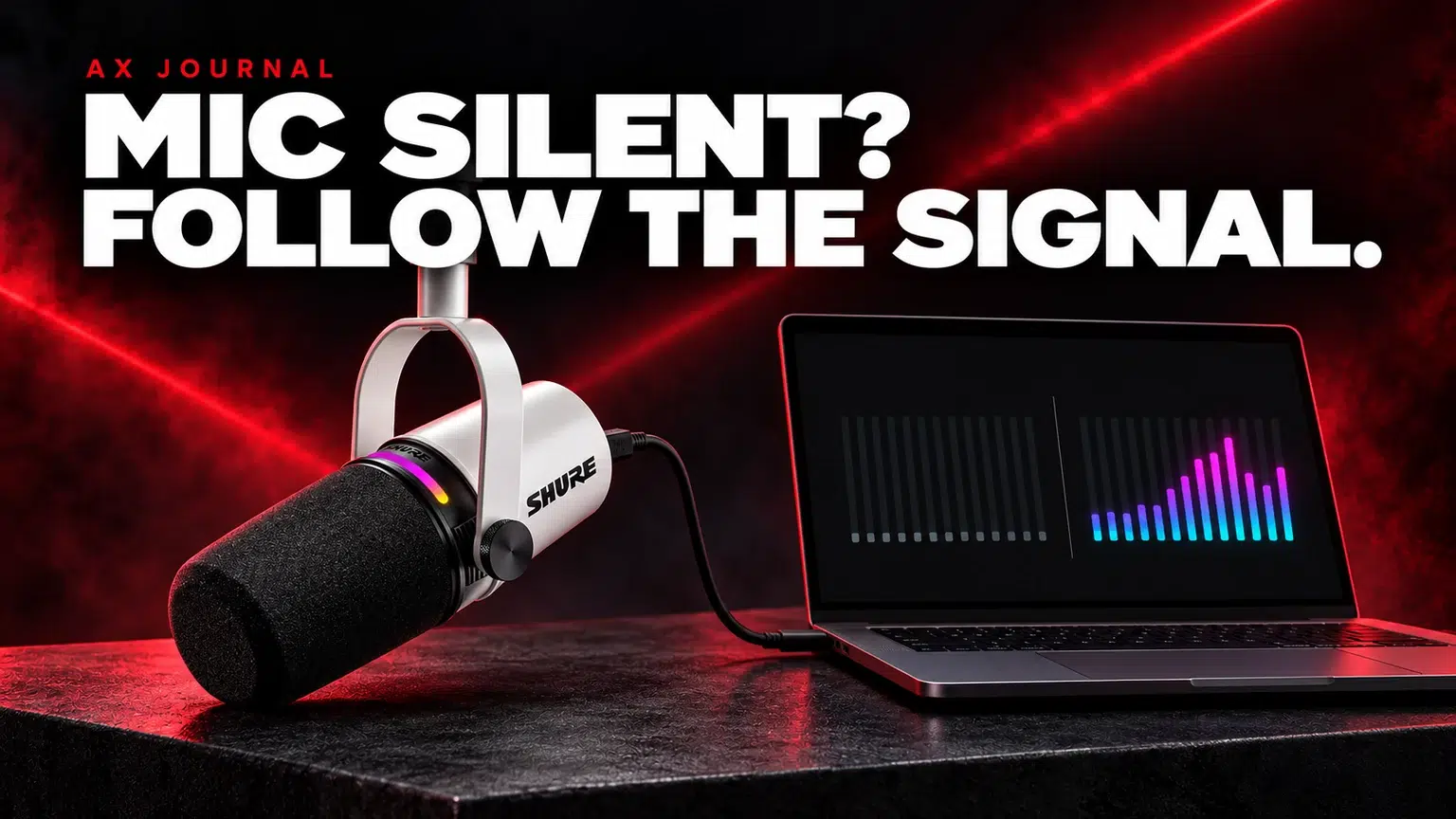
USB Microphone Not Working: the essentials
USB Microphone Not Working in Windows or Discord usually needs a clear connection and input-selection check before you replace the microphone or add more software.
Begin with a useful symptom map
| What you observe | Start here | Useful evidence |
|---|---|---|
| Microphone absent from Windows inputs | USB connection and device detection | Exact model, cable and port used |
| Windows meter moves, Discord is silent | Discord input selection and permission | Saved local recording plus Discord test |
| Voice is recorded, but you cannot hear it live | Headphone output and monitoring | Recording plays correctly |
| Signal appears only when speaking very loudly | Mute, gain, input sensitivity or processing | Normal-distance spoken test |
A microphone light proves that some power reaches the device; it does not prove that the cable carries data or that the correct input is selected. A moving application meter proves a signal at that stage; it does not prove the stream or call receives it.
1. Identify the actual connection
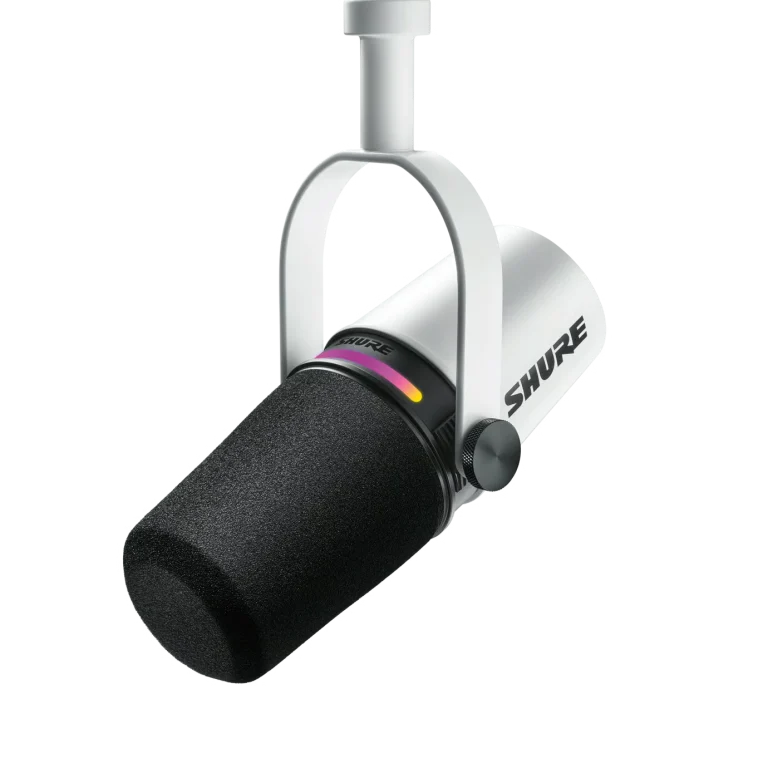
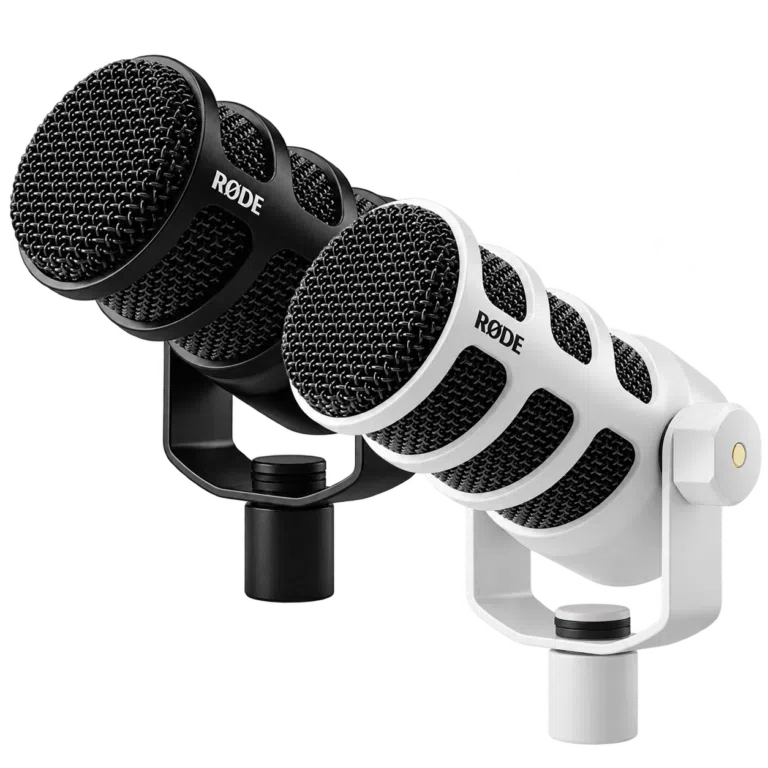
A hybrid microphone such as Shure MV7+ or PodMic USB can be used in different chains. Confirm whether the computer is receiving the microphone directly by USB or receiving an interface’s XLR input.
For the direct USB test, use a suitable data cable and connect as the manufacturer directs. If a hub is involved, temporarily simplify the path with a suitable direct computer port. This isolates one variable without changing the rest of the recording setup.
2. Check physical mute and the selected device
Look at the microphone’s documented mute control and status indication. Then open Windows sound settings and identify the intended recording input by its full device name. A webcam, headset or controller may have become the selected input after being connected.
Speak at a normal distance and watch the correct input meter. If several similar endpoints appear, record which one you test. Clear names and a small written route are more useful than changing every available device at random.
3. Check microphone permission deliberately
Windows and browser privacy controls can prevent an otherwise detected microphone from reaching an application. Review the microphone-access setting for the application you intend to use. A browser-based call may also need permission for that particular site.
Apply permissions only to the software and site you trust and intend to use. Then retest the same short phrase. Changing a permission and an input selection simultaneously makes the diagnosis less clear, so keep the sequence simple.
4. Make a local recording before opening more software
Use a basic recording application to capture a few seconds of normal speech. Stop and play the file. If it is clear, the physical connection and that recording route are working; move to the application that still fails.
If playback is silent, confirm the playback output as well as the recorded input. A successful recording can appear broken when the file is playing through a different monitor or headset. Check the saved file with a known working output before concluding that the microphone failed.
5. Select the input inside Discord
Discord’s Voice & Video settings have their own input and output selections. Choose the intended microphone explicitly and use the available microphone test. Do not assume the application followed the latest Windows default.
Confirm whether your session uses voice activity, push-to-talk or a mute state. A push-to-talk configuration can be functioning correctly while appearing silent if its assigned control is not being used. Test in a suitable private call before changing a live stream.
6. Review processing when quiet speech disappears
If loud speech works but normal phrases are cut off, examine the application’s input threshold, gate and processing. Start from a simple known configuration and add one feature back at a time. Compare complete sentences, including quieter beginnings and endings.
Noise suppression, automatic level and microphone software may each be active in different places. Document which layer does the job so that several processors are not working against one another. Good microphone placement remains useful even when software assistance is available.
7. Use model-specific software and drivers
Check the manufacturer’s current instructions for required drivers, firmware and software compatibility. Install updates from the official source for the exact model. Original Wave:3 and Wave:3 MK.2, for example, should not be treated as the same hardware.
If the problem began after a particular change, write down that change and the current versions. This provides useful evidence for support. Resetting every voice setting can remove a working custom route, so keep that as a documented later step rather than the first experiment.
8. Retest the complete destination
Once local recording and Discord both work, test the stream or recording application separately. Capture game audio and speech, then open the saved result. An input that works in Discord is not automatically assigned to OBS.
Our OBS separate-audio guide explains that destination check. For captured keyboard or room noise, follow the background-noise guide. If support is needed, send the microphone model, connection route, application version and the point where the signal stops; that is a useful diagnosis to take to AX.
Frequently asked questions
The microphone light is on. Why is there no sound?
Power, USB data and application routing are different parts of the chain. Check Windows detection and the selected recording input rather than using the light as the only test.
It records in Windows but not Discord. Should I buy a new mic?
First check Discord’s input selection, permissions, mute and transmission settings. A working local recording points to an application-route issue.
Should I reset every voice setting immediately?
Keep a record of working settings and test one change at a time. A full reset can remove useful custom routing and should be a deliberate later step.
Continue planning your setup
- 7 Best Microphones for Gaming and Podcasts in Kuwait
- How to Reduce Microphone Background Noise at a Gaming Desk
- Record Game, Discord and Mic Separately in OBS
Related guide: USB vs XLR microphones.
Explore Microphones or ask AX Store Kuwait about your setup.
Shop the equipment in Kuwait
AX price check, 26 October 2026: Shure MV7+ Hybrid Dynamic Podcast Microphone, USB and XLR — KWD 99.000 (out of stock); RØDE PodMic USB Dynamic Microphone – USB-C & XLR – Black / White — KWD 69.900 (in stock). The product cards show the current price and availability when you shop.
Explore SHURE at AX Kuwait, RODE at AX Kuwait, Elgato at AX Kuwait for the rest of the range.
AS


Build a setup that fits how you use it
Tell AX your exact models and what you want to do. We can help match the equipment and connections.