
BUYING GUIDES
Same-day delivery · Official warranty · Taly & Deema
High-Refresh Monitor Setup means checking the whole chain: the selected Windows mode, graphics output, cable and the monitor input you are using.
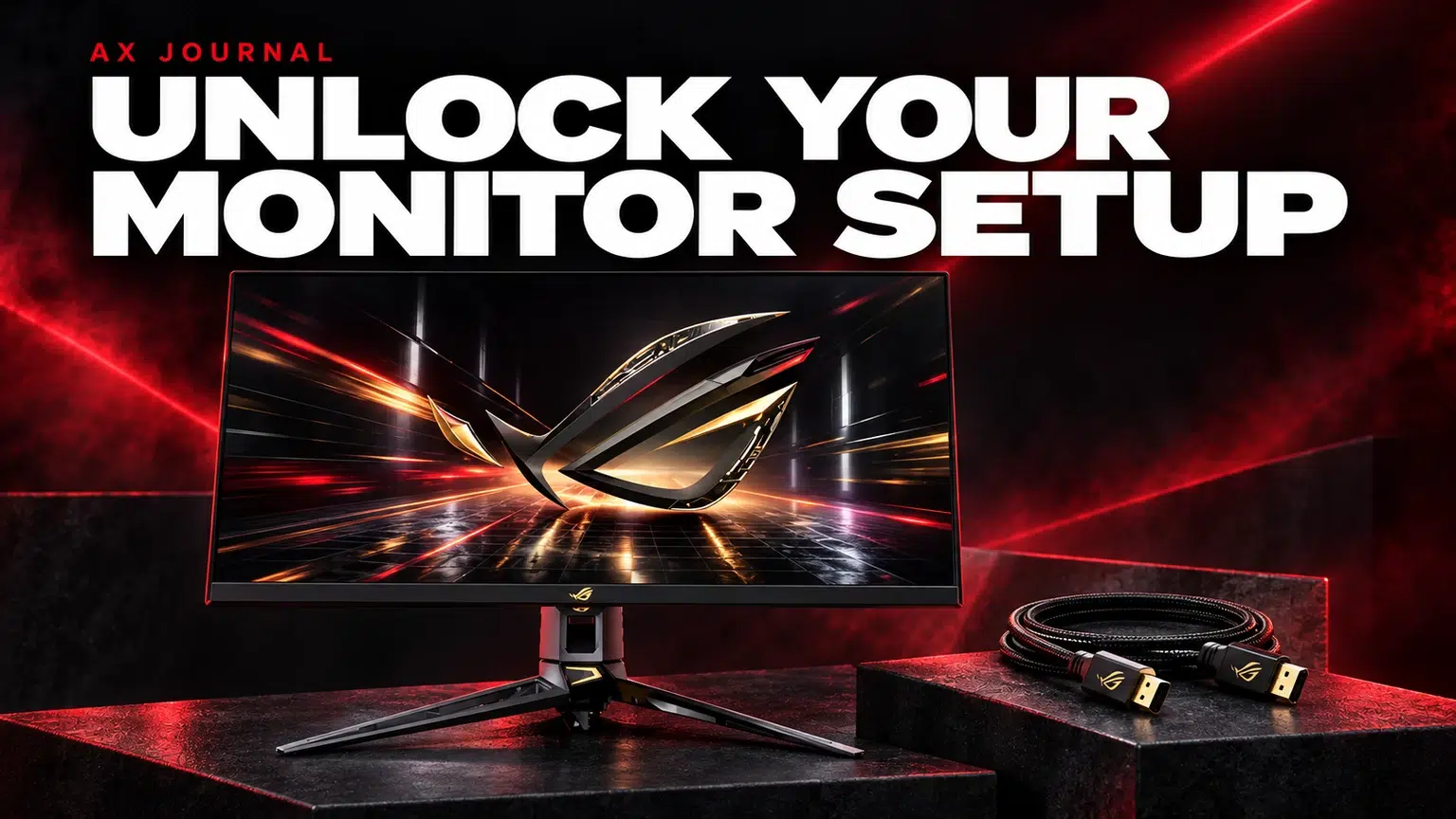
High-Refresh Monitor Setup means checking the whole chain: the selected Windows mode, graphics output, cable and the monitor input you are using.
A monitor’s maximum refresh rate describes a supported mode under particular conditions. The GPU output, cable, adapter or dock and selected monitor input all participate in whether that mode is available. Begin with the exact model and its supported resolution / refresh combinations.
For a desktop with a dedicated graphics card, check the intended display connection on that card. A motherboard video socket may have different requirements and capabilities. If a dock or adapter is present, compare a suitable direct connection to isolate its role in the path.
Open Windows Settings → System → Display → Advanced display. Select the correct screen when more than one is connected, then choose an available refresh rate. The choices depend on the connected hardware and current display mode.
Confirm the selected resolution as well as the rate. Some available combinations change the resolution, so read the mode rather than choosing the largest number in isolation. Keep a note of the working configuration before trying another input or cable.
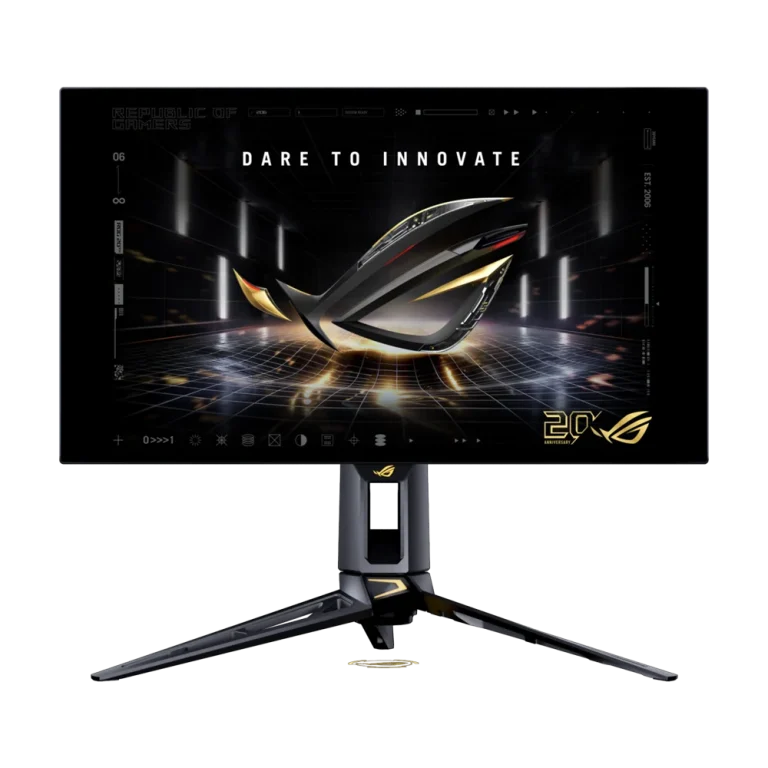
The ROG PG27AQWP-G Edition 20 advertises QHD at 540Hz and an alternative HD mode at 720Hz. Those are different resolution / refresh pairs. The headline 720Hz figure should not be read as QHD at 720Hz.
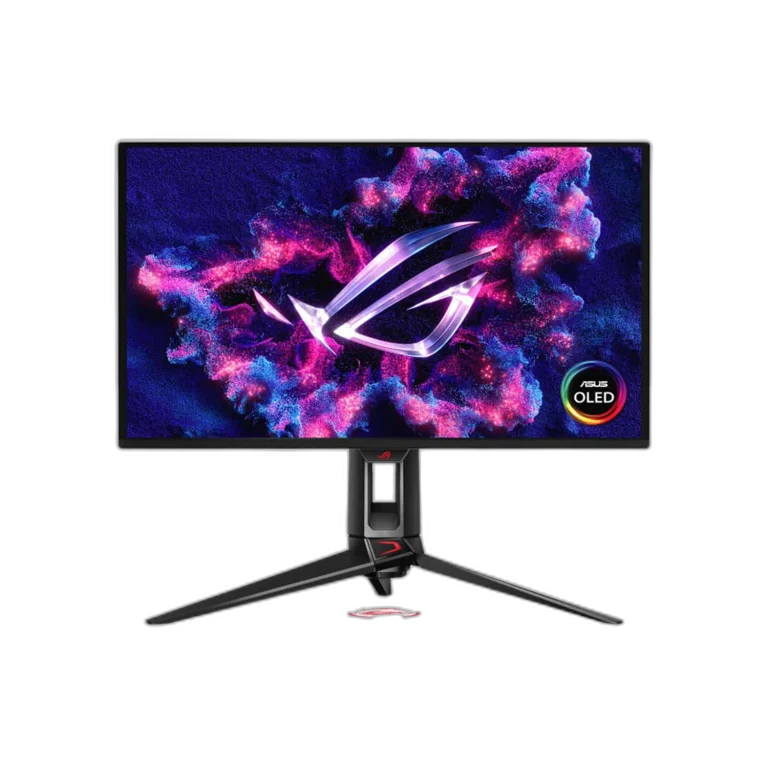
The PG27UCDM follows a different direction with a 4K 240Hz headline specification. Our ASUS OLED buying guide compares the purposes. Choose a mode around the game, desktop work and actual PC, then confirm the monitor and Windows agree on it.
| Check | Why it matters | A useful next step |
|---|---|---|
| Exact monitor input | Inputs can have different mode support | Read the model’s input-specific table |
| Cable and adapter capability | A plug shape does not describe the full link | Compare a documented suitable direct cable |
| Current resolution | The maximum rate may belong to another resolution | Check the intended resolution / rate pair |
| GPU and software | Output support and driver state affect available modes | Use official guidance for the exact GPU |
| Dock or hub | The intermediate device may impose a limit | Test a suitable direct connection |
Change one part at a time. A random cable swap and several software changes may restore the image without showing which component caused the limitation. A documented working path is more useful for future upgrades.
Refresh rate is the panel’s update frequency. Frame rate is what the game and PC deliver. Pixel-response specifications describe another part of display behaviour. None of these numbers alone describes the complete experience.
A high-refresh monitor does not force the game to produce the same number of frames. Compare frame-time consistency at the settings you actually play. For a mixed gaming desk, it may be sensible to use one set of game settings for competitive play and another for visually demanding single-player games.
Variable refresh rate is a display and GPU feature that changes the refresh timing within a supported range. Check the exact monitor’s Adaptive-Sync / FreeSync / G-SYNC compatibility and the GPU instructions before enabling the relevant controls.
Dynamic Refresh Rate in Windows is a separate operating-system feature and should not be treated as another name for every gaming VRR setup. Establish the fixed display mode first, then compare the supported variable-refresh behaviour in a familiar game. Keep other settings consistent.
Check the monitor’s HDR requirements and the Windows controls for the selected display. HDR content, desktop appearance and game configuration are related but different. A setting that looks good in one game is not proof that every application is producing the intended output.
Begin with the manufacturer’s recommended starting configuration and a known piece of suitable content. Follow model-specific OLED care instructions where applicable. Avoid changing colour modes, HDR, brightness and game gamma together when diagnosing an unexpected image.
For a simpler high-refresh Full HD route, compare the ASUS TUF VG279Q5R around your PC. Use the resolution and high-refresh buying guide before upgrading and the MW4 setup guide to plan the wider desk.
Check the selected display mode, input, GPU output and complete cable / adapter path. The monitor’s headline maximum is not applied automatically in every connection.
No. The display’s refresh rate and the game’s delivered frame rate are separate.
No. They are different features. Check Windows guidance and the exact GPU / monitor instructions for the function you intend to configure.
Related guide: Resolution and high-refresh buying guide.
AX price check, 26 October 2026: ASUS ROG Swift OLED PG27AQWP-G Edition 20 27″ Gaming Monitor – QHD 540Hz / HD 720Hz — KWD 431.900 (in stock); ASUS ROG Swift PG27UCDM 27 inch 4K QD-OLED 240Hz Monitor — KWD 379.000 (out of stock). The product cards show the current price and availability when you shop.
Explore ASUS at AX Kuwait for the rest of the range.
KEEP READING
All Buying Guides guides

Build a setup that fits how you use it
Tell AX your exact models and what you want to do. We can help match the equipment and connections.
Added to cart
Subscribed
We'll email you as soon as it's back in stock.
Saved to wishlist

