COMPARISONS
Same-day delivery · Official warranty · Taly & Deema
GoXLR and Sound BlasterX G6 can serve different parts of a desk audio chain when the analogue connections, monitoring routes and levels are planned correctly.
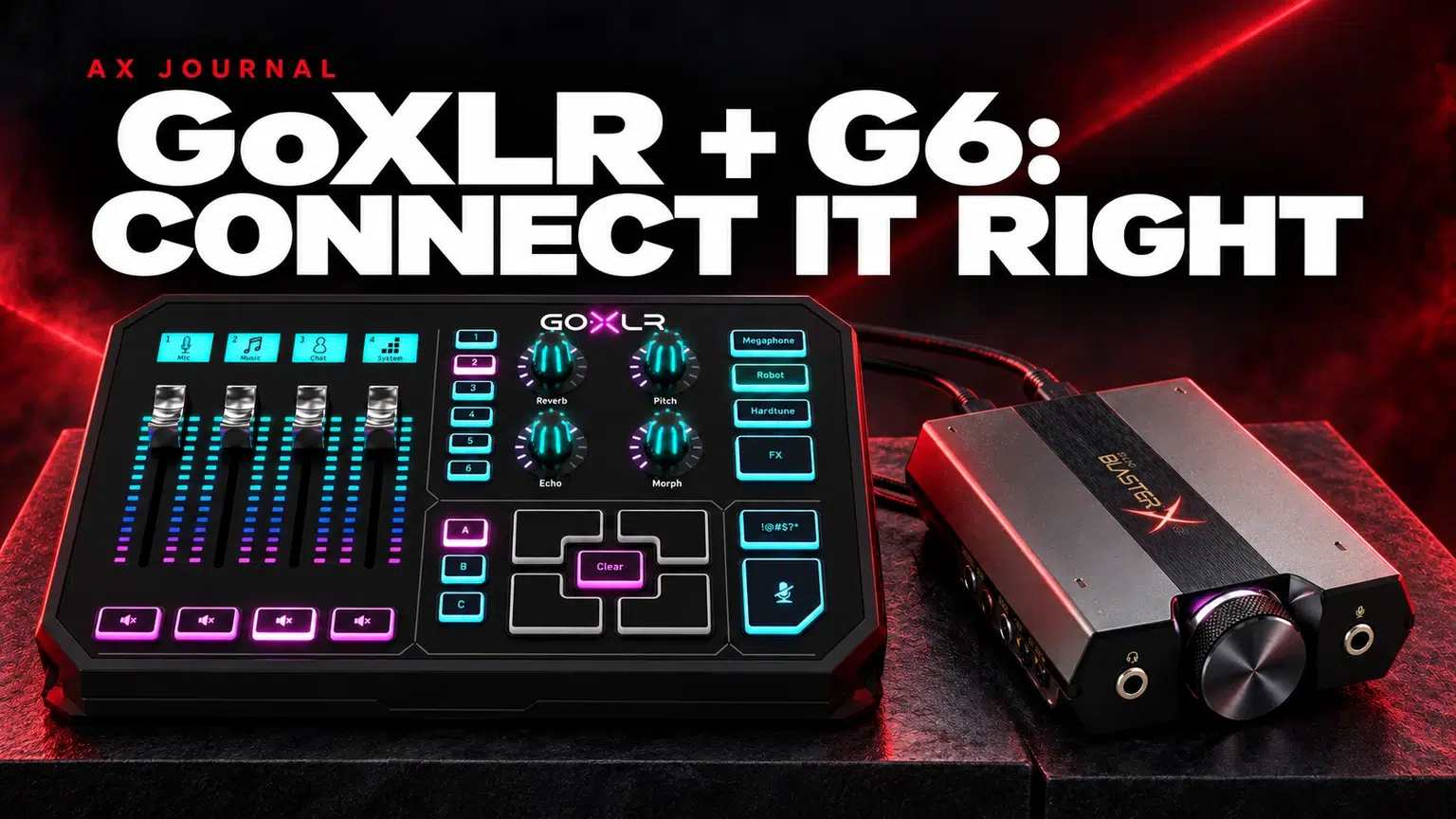
GoXLR and Sound BlasterX G6 can serve different parts of a desk audio chain when the analogue connections, monitoring routes and levels are planned correctly.
This arrangement keeps GoXLR as the mixer and uses the Sound BlasterX G6 for headphone playback from an analogue feed. It is a practical wiring plan derived from the manufacturers’ documented ports, rather than a claim that AX has measured every hardware and software revision together.
The G6 needs USB power. Depending on how you connect that USB cable, the computer may also expose G6 playback and recording endpoints. Those endpoints do not need to carry a second copy of the same game audio. Decide which device owns each part of the route before changing the Windows defaults.
| Step | Connection | Purpose |
|---|---|---|
| 1 | Computer USB → GoXLR | Main audio routing and microphone workflow |
| 2 | GoXLR LINE OUT → stereo 3.5mm TRS cable | Analogue feed from the selected mixer route |
| 3 | Cable → G6 LINE IN / OPTICAL IN combo socket in analogue use | Receives the stereo analogue signal |
| 4 | Suitable USB supply → G6 USB power connection | Powers the G6; use the cable for your revision |
| 5 | Headphones → G6 headphone output | Final listening output |
The rear G6 combination input supports different signal types. For this analogue chain, use its analogue line-input function and a normal electrical stereo cable. An optical cable is a different connection and cannot carry an analogue signal simply because the socket shares a label.
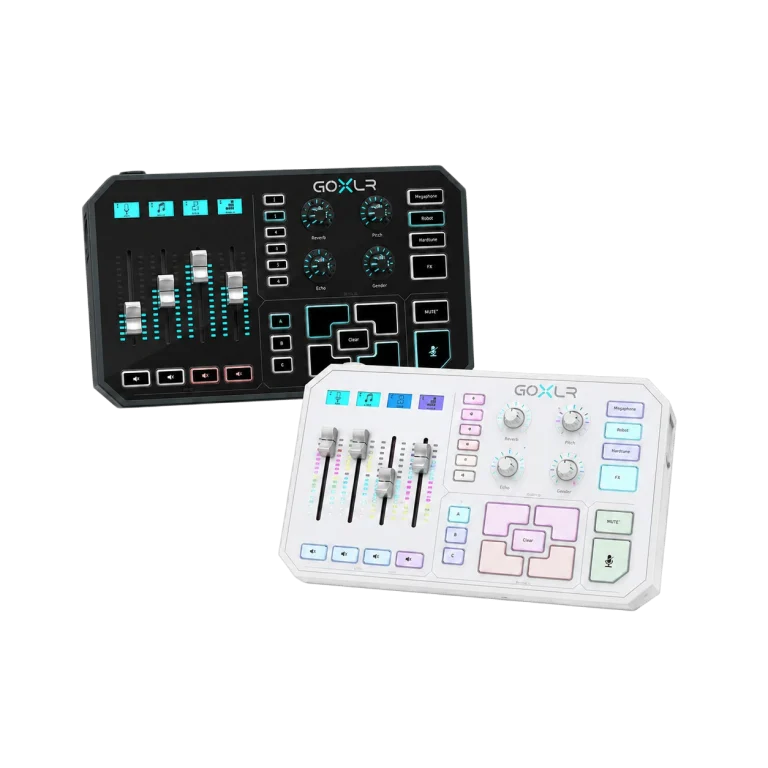
Both ends of this direct GoXLR-to-G6 line connection use stereo 3.5mm sockets. A stereo TRS-to-TRS cable is therefore the straightforward match. Choose a sensible length that reaches without pulling on the sockets; unnecessary cable coils can make the desk harder to diagnose.
A FiiO K7 has RCA analogue line inputs. Feeding that device from a stereo 3.5mm line output uses a 3.5mm stereo-to-two-RCA cable instead. This difference comes from the receiving device’s input, not from a rule that every headphone amplifier needs RCA.
In the GoXLR routing controls, choose the signals that should reach LINE OUT. On the G6 side, enable monitoring of the analogue line input using the controls available in the software for your model. Begin with a simple stereo path and effects disabled so you can hear whether the basic feed is clean.
Play a familiar file, stop playback, then test chat and the microphone separately. Avoid sending the same game to GoXLR over USB and directly to G6 over a second USB playback route. A duplicated route can sound louder, echoing or strangely coloured even when every cable is working correctly.
A ground loop can produce a steady hum or buzz when powered devices share an analogue connection. First reduce the route to its essentials and inspect whether the noise appears when the analogue link is connected. Check cable seating and power arrangements using the equipment as intended.
If that points to a ground-loop problem, a suitable stereo line-level audio isolator can sit in the analogue path. It is not a general microphone-noise remover and will not repair a duplicated software route. Choose the correct connector type and remember that an isolator adds another component to the signal path. Do not alter protective mains grounding.
Do not casually connect G6 line output back into GoXLR line input while also monitoring the original route. Sending an output back into a path that feeds itself can create a feedback loop. Any return connection needs its own deliberate routing design.
Start headphone volume low and set the source level conservatively, then raise it gradually. A clipped source remains clipped after it reaches the G6. If sound distorts, reduce the level at the stage that is overloading rather than trying to hide it with equalisation. Monitor one change at a time.
For the broader device roles, read our DAC, amplifier and interface guide. If you have not selected the receiving amplifier yet, compare the FiiO range first; the correct cable follows the exact input, and a simpler direct headphone route may already meet your needs.
No. The direct analogue line route described here uses stereo 3.5mm connections. RCA becomes relevant when the receiving amplifier has RCA line inputs, such as K7.
No. Add one for a diagnosed analogue ground-loop hum, not as an automatic accessory for every setup.
The G6 is not a phantom-powered XLR microphone interface. Keep an XLR microphone on a suitable microphone input such as the GoXLR input.
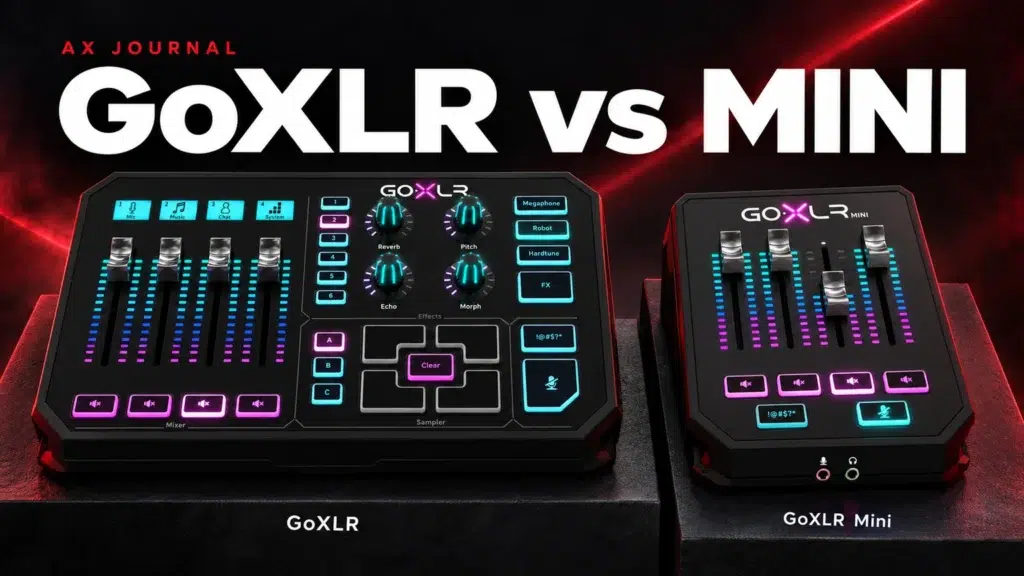
For the related buying decision, read our GoXLR vs GoXLR Mini.
Explore Amps, DACs & Preamps. For help matching exact model numbers, contact AX Store Kuwait.
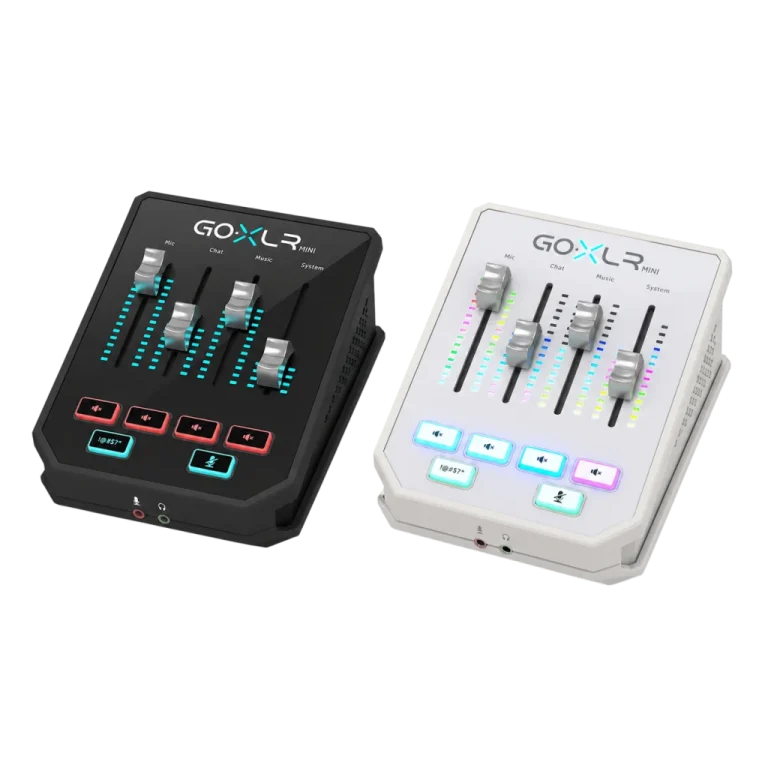
AX price check, 26 October 2026: TC-Helicon GoXLR 4-Channel USB Streaming Mixer — KWD 119.900 (in stock); TC-Helicon GoXLR Mini USB Mixer & Audio Interface – 4 Faders, MIDAS Preamp — KWD 69.900 (in stock). The product cards show the current price and availability when you shop.
Explore TC-Helicon at AX Kuwait, Creative at AX Kuwait for the rest of the range.
Build a setup that fits how you use it
Tell AX your equipment models and what you want to do. We can help you choose the right connections and products.
Added to cart
Subscribed
We'll email you as soon as it's back in stock.
Saved to wishlist


